
- 전체
- JAVA 일반
- JAVA 수학
- JAVA 그래픽
- JAVA 자료구조
- JAVA 인공지능
- JAVA 인터넷
- Java Framework
- Java GUI (AWT,SWING,SWT,JFACE)
- SWT and RCP (web RAP/RWT)[eclipse], EMF
SWT and RCP (web RAP/RWT)[eclipse], EMF Learn Eclipse GMF in 15 minutes
2019.11.20 13:25
Learn Eclipse GMF in 15 minutes
Get started with model-driven development the Eclipse way
Background
Let me be blunt: In the past, creating graphical editors within Eclipse using the Graphical Editor Framework (GEF) was slow and painful. It involved understanding a complex framework and quite a bit of redundant code. That said, GEF is an excellent framework for creating graphical editors because it is model-agnostic. On the other hand, being model-agnostic creates its own problems.
GEF, in the spirit of the Model-View-Controller (MVC) paradigm, allows you to bring your own model to the table. In the early days of GEF, most people used custom models (think Plain Old Java™ Objects (POJOs)). The problem with custom models is that you find yourself writing common code to support your model, like serialization and the ability to listen to model changes.
The next logical step for using a model in GEF was to use the Eclipse Modeling Framework (EMF), which provides facilities to serialize your model in various formats and the ability to listen to model changes, all out of the box.
However, there were technical challenges (like different command stacks) integrating EMF models within the GEF framework, which delayed adoption of EMF models for GEF-based editors. In the end, the GMF project was born out of this frustration and the desire to bring an expedited way to generate graphical editors. In a similar way, EMF generates basic editors for EMF models.
Create your EMF model
The first step on our adventure is to define an EMF model with which to work. My goal is just to show the process of defining the model and not go into the depth of the facilities that EMF provides for manipulating a model. The model we will use in this example is a simple shapes model. I like to start with a picture to help me visualize how the model will look.
Figure 1. The shapes model visualized

As you can see, the model is a very simple way to help us understand how everything works. It has a notion of some shapes, connections, and a shapes diagram.
EMF supports multiple ways of defining a model. I decided to use annotated Java technology for simplicity. The code listings below show how to define a model using EMF. Our first model object is a shape that has a name attribute, source, and target connections (of type Connection). Please note that this is an abstract EMF class.
Listing 1. Shape.java
|
1
2
3
4
5
6
7
8
9
10
11
12
13
14
15
16
17
18
19
20
|
/** * @model abstract="true" */public interface Shape {/** * @model */String getName();/** * @model type="com.ibm.model.shapes.model.Connection" containment="true" */List getSourceConnections();/** * @model type="com.ibm.model.shapes.model.Connection" */List getTargetConnections();} |
Next, we define a shapes diagram that will hold a list of all our shapes.
Listing 2. ShapesDiagram.java
|
1
2
3
4
5
6
7
8
9
|
/** * @model */public interface ShapesDiagram {/** * @model type="com.ibm.model.shapes.model.Shape" containment="true" */List getShapes();} |
Next, we define some special shapes to liven up our model a bit.
Listing 3. RectangularShape.java
|
1
2
3
4
|
/** * @model */public interface RectangularShape extends Shape {} |
Listing 4. EllipticalShape.java
|
1
2
3
4
|
/** * @model */public interface EllipticalShape extends Shape {} |
Finally, it would be nice if we had some notion of a connection so we could actually connect our shapes together.
Listing 5. Connection.java
|
1
2
3
4
5
6
7
8
9
10
|
/** * @model */public interface Connection {/** @model */Shape getSource();/** @model */Shape getTarget();} |
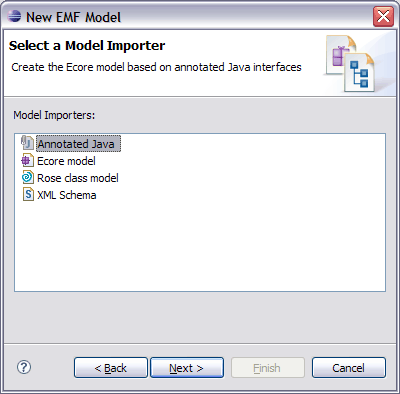
After we have our models defined in the Java programming language, we define a new EMF genmodel by using File > New > Eclipse Modeling Framework > EMF Model (see Figure 2). Note: If you don't have an EMF project, create one first.
Figure 2. EMF annotated Java importer
After you create your EMF genmodel, right-click on the file and make sure to generate Model and Edit components (you can just select Generate All to make your life easier).
Create your GMF models
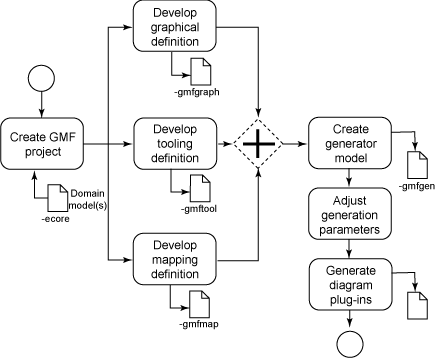
GMF has a set of models you need to create to generate a graphical editor. Figure 3 displays the process involved in creating these models. The first model we need to work with is the graphical definition, which defines the visual aspects of our generated editor. Next is the tooling definition, which comprises things related to editor palettes, menus, etc. Finally, the last model we need is the mapping definition that defines -- you guessed it -- the mapping between the business logic (your EMF shapes model) and visual model (graphical and tooling definition).
Figure 3. GMF overview (from the GMF wiki)
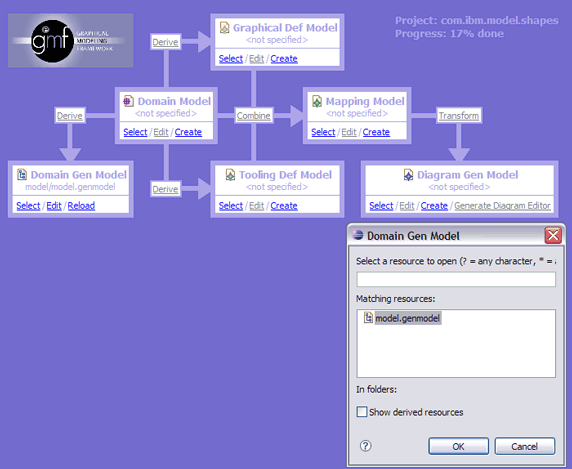
GMF has a great utility called the GMF dashboard (Window > Show View > Other > GMF Dashboard). The dashboard serves as an easy way to go through the process of generating a graphical editor. At this stage, you should already have your domain model and domain genmodel selected.
Figure 4. GMF dashboard
The GMF graphical definition model
GMF cheat sheets
GMF has a fantastic cheat sheet available to guide you through the process of creating a GMF-generated editor. I recommend using it along with the GMF dashboard. Access the cheat sheet through menu item Help > Cheat Sheets....


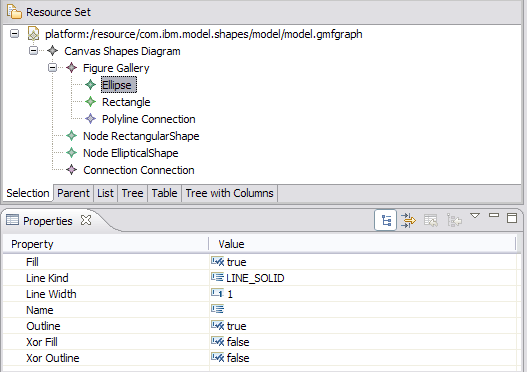
The first model we create is the graphical definition model (click the create hyperlink under the Graphical Def Model in the dashboard). Make sure to select Canvas as the model object. This model is simple to create:
- Create the figures we want displayed on the diagram. This is done by creating a new Figure Gallery entry in the editor and creating various figures.
- Create the nodes we'll see on our diagram (rectangular shape and elliptical shape).
- Create a connection on our diagram.
- Make sure each node matches up to the figure created in the figure gallery.
Note: If you're having trouble with this task, there is a sample plug-in download that has all the models already made for you.
Figure 5. GMF graph model
The GMF tooling definition model
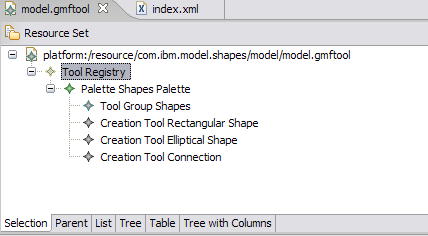
In this step, we need to define the tooling definition model, which lets us define information-like palettes and menus for our graphical editor. To define a tooling definition model, open the GMF Dashboard and click create. Our simple model only needs to define a palette and some creation tools to help with model creation (see Figure 6).
Figure 6. GMF tooling model
The GMF mapping definition model
The mapping definition model is where it all comes together. In this model, we map our visual (graph) model to our business logic (domain model). GMF has a neat set of wizards to help create a mapping definition. It can be invoked using File > New > Graphical Modeling Framework > Guide GMFMap Creation. The first step is to select all of our GMF models (see Figure 7).
Figure 7. GMFMap guide wizard 1

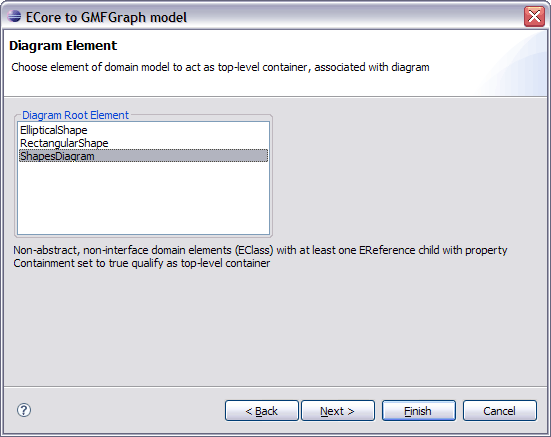
Next, the wizard intelligently asks us to select which model element we want to use as the diagram root element. In our case, this will be the ShapesDiagram model element.
Figure 8. GMFMap guide wizard 2
Finally, GMF does some magic for us to figure out what model elements should be mapped to what visual elements.
Figure 9. GMFMap Guide wizard 3
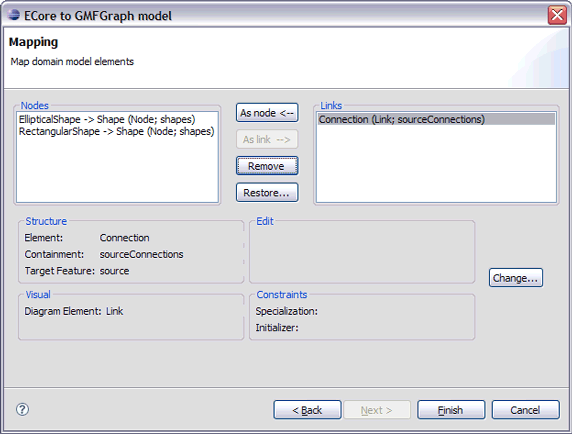
It is important to note that these wizards may change as GMF evolves. There is talk of GMF using graphical editors bootstrapped by GMF itself to help with the creation of the mapping definition file (and the other GMF models).
Generate your GMF editor
The last and most enjoyable step of this whole process is to generate your graphical editor. To do this, create a GMFGen model from your mapping definition model. To do this, right-click your mapping definition file and select Create generator model.... A new project should be generated containing all the code to work with your graphical editor. To use your graphical editor, launch a new Eclipse runtime workbench and go to File > New > Examples > Model Diagram (see Figure 10).
Figure 10. Model wizard
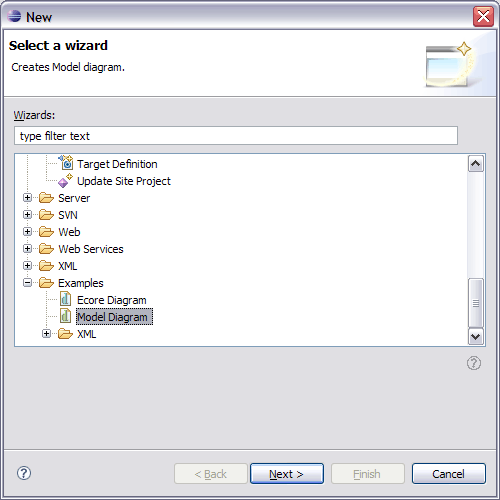
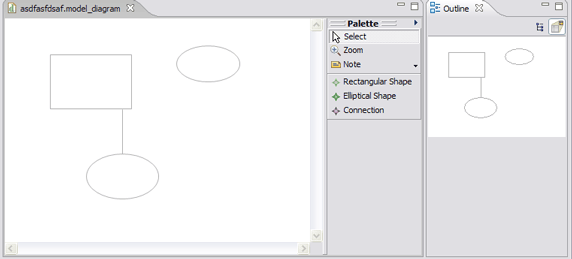
After your model file is created, you should be able to work with the generated editor (see Figure 11). That wasn't too bad, was it?
Figure 11. Shapes editor
GMF features
It's important to note that the generated editor we've concocted is only a fraction of GMF's capabilities. There is much tweaking that can be done to take advantage of the advanced features of the framework.
For example, GMF has support for validation. What I mean by this: What happens if we wanted to restrict our shapes model to only allow one connection per model element? Only allow similar elements to connect to each other? Or, how about have control over what type of names can be used for our shapes? GMF is fully capable of supporting these types of validation and more. For validation, GMF takes advantage of the Eclipse Modeling Framework Technology (EMFT) to support scenarios involving defining validators using Java code and the Object Constraint Language (OCL). GMF will put error markers for files that don't pass validation similar to what Eclipse does for Java files that don't compile. To find out more about what GMF supports, see Related topics.
Conclusion
My goal here was twofold: I wanted to demonstrate a new and exciting part of the Eclipse Callisto release that supports model-driven development, and I wanted to show how cool it is, in just 15 minutes, to generate graphical editors in Eclipse.
Downloadable resources
- PDF of this content
- Sample plug-in (os-ecl-gmf.zip | 41KB)
Related topics
- Visit The Eclipse Graphical Modeling Framework (GMF) to learn about GMF in general.
- The Graphical Modeling Framework wiki offers tutorials and plenty of information about advanced GMF features.
- Frederic Plante wrote a wonderful article titled "Introducing the GMF Runtime," detailing the advanced features of the GMF runtime.
- Check out the Eclipse Modeling Framework (EMF) for tutorials and articles that can be useful for the EMF novice.
- The EMF team has a good introductory tutorial titled "Generating an EMF Model."
- If you need the definitive source on EMF, the book Eclipse Modeling Framework is a great reference.
- The Eclipse Modeling Project is a new Eclipse top-level project aimed at promoting model-based development technologies within the Eclipse community by providing a unified set of modeling frameworks, tooling, and standards implementations. The EMF and GMF projects will be under this project in the future.
- The Eclipse Modeling Framework Technology (EMFT) Project is a new Eclipse project that incubates new EMF-related technologies.
- Learn more about the Eclipse Foundation and its many projects.
- For an excellent introduction to the Eclipse platform, see "Getting started with the Eclipse Platform."
- Check out the latest Eclipse technology downloads at IBM alphaWorks.
- Expand your Eclipse skills by visiting IBM developerWorks' Eclipse project resources.
- Browse all of the Eclipse content on developerWorks.
- Innovate your next open source development project with IBM trial software, available for download or on DVD.
[출처] https://www.ibm.com/developerworks/library/os-ecl-gmf/
광고 클릭에서 발생하는 수익금은 모두 웹사이트 서버의 유지 및 관리, 그리고 기술 콘텐츠 향상을 위해 쓰여집니다.

