
- 전체
- Python 일반
- Python 수학
- Python 그래픽
- Python 자료구조
- Python 인공지능
- Python 인터넷
- Python SAGE
- wxPython
- TkInter
- iPython
- wxPython
- pyQT
- Jython
- django
- flask
- blender python scripting
- python for minecraft
- Python 데이터 분석
- Python RPA
- cython
- PyCharm
- pySide
- kivy (python)
Python 인터넷 [python 인터넷][네이버 뉴스 크롤링] python crawling - 네이버 뉴스 기사 크롤링
2022.06.28 12:47
[python 인터넷][네이버 뉴스 크롤링] python crawling - 네이버 뉴스 기사 크롤링
기사 크롤링
from bs4 import BeautifulSoup
from selenium import webdriver

driver = webdriver.Chrome('chromedriver')

url = "https://search.naver.com/search.naver?where=news&sm=tab_jum&query=추석"

driver.get(url)
req = driver.page_source
soup = BeautifulSoup(req, 'html.parser')

titles = soup.select_one('#sp_nws1 > dl > dt > a')
print(titles)    # 이상한 태그를 다 출력함

driver.quit()
from bs4 import BeautifulSoup
from selenium import webdriver

driver = webdriver.Chrome('chromedriver')

url = "https://search.naver.com/search.naver?where=news&sm=tab_jum&query=추석"

driver.get(url)
req = driver.page_source
soup = BeautifulSoup(req, 'html.parser')

titles = soup.select_one('#sp_nws1 > dl > dt > a')
#sp_nws4 > dl > dt > a    <- 2번째 기사의 copy selector
#sp_nws9 > dl > dt > a    <- 3번째 기사의 copy selector
# 기사제목의 태그들이 순차적이지 않음

print(titles.text)    # 문제(텍스트)만 출력하도록 함

driver.quit()
이미지랑 다르게 태그들이 순차적이지 않음
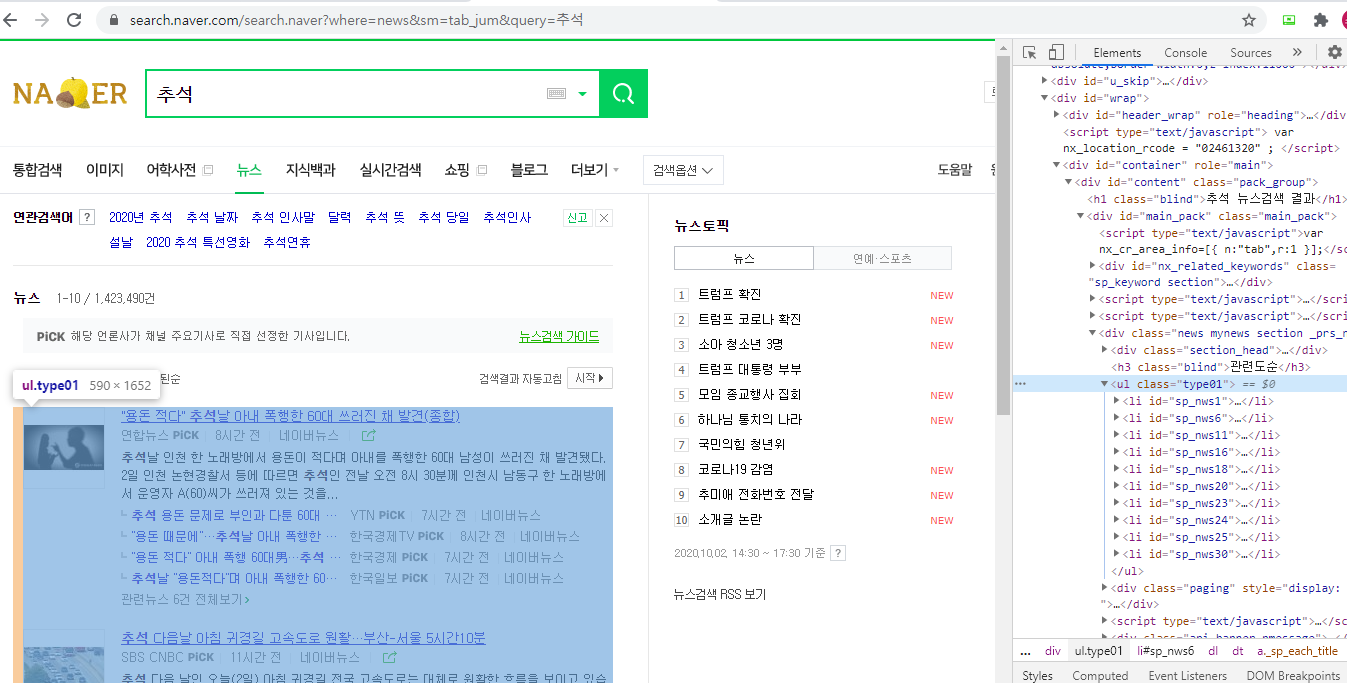
- 위의 화면처럼 ul태그(뉴스 내용 전체)를 copy selector하여 그 안의 li태그를 가져와야 함
참고 사이트 : BeautifulSoup 모듈 find와 select
from bs4 import BeautifulSoup
from selenium import webdriver

driver = webdriver.Chrome('chromedriver')

url = "https://search.naver.com/search.naver?where=news&sm=tab_jum&query=추석"

driver.get(url)
req = driver.page_source
soup = BeautifulSoup(req, 'html.parser')

titles = soup.select('#main_pack > div.news.mynews.section._prs_nws > ul > li')

for title in titles:
    print(title)

driver.quit()
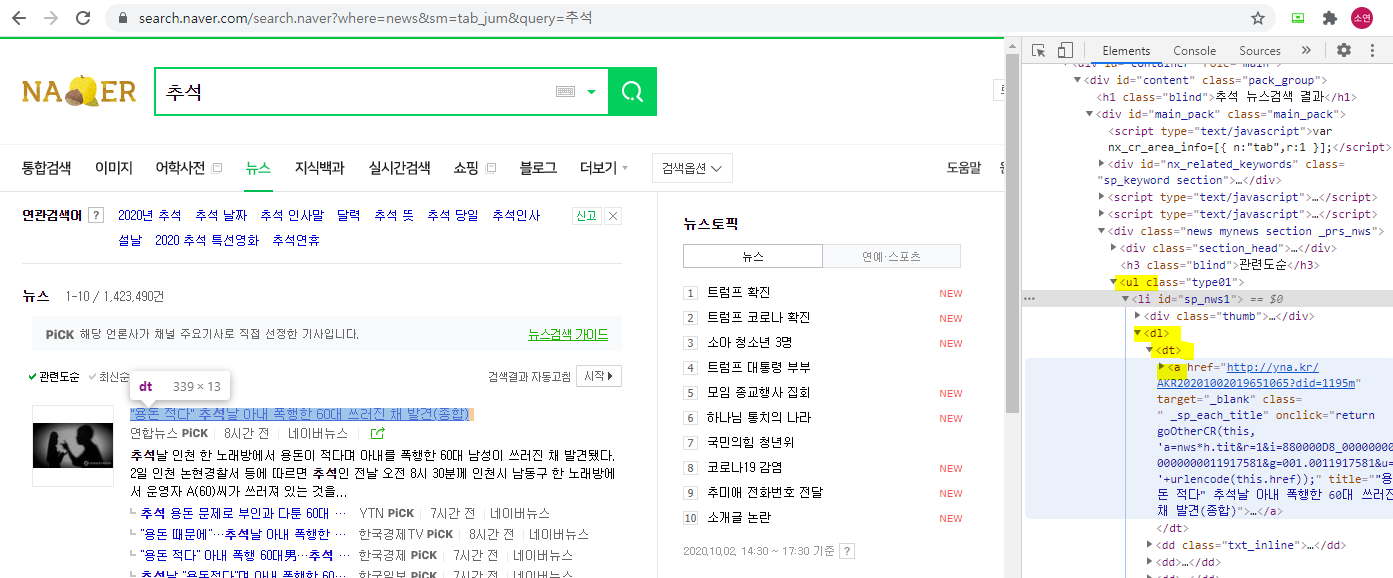
위의 화면에서 li태그 안에서 dl태그 안에 dt태그 안에 a 태그의 정보를 출력
from bs4 import BeautifulSoup
from selenium import webdriver

driver = webdriver.Chrome('chromedriver')

url = "https://search.naver.com/search.naver?where=news&sm=tab_jum&query=추석"

driver.get(url)
req = driver.page_source
soup = BeautifulSoup(req, 'html.parser')

titles = soup.select('#main_pack > div.news.mynews.section._prs_nws > ul > li')

for title in titles:
    tit = title.select_one('dl > dt > a')
    print(tit)

driver.quit()
a태그 안의 글자(제목)만 가져오기
from bs4 import BeautifulSoup
from selenium import webdriver

driver = webdriver.Chrome('chromedriver')

url = "https://search.naver.com/search.naver?where=news&sm=tab_jum&query=추석"

driver.get(url)
req = driver.page_source
soup = BeautifulSoup(req, 'html.parser')

titles = soup.select('#main_pack > div.news.mynews.section._prs_nws > ul > li')

for title in titles:
    tit = title.select_one('dl > dt > a').text
    print(tit)

driver.quit()
기사의 url 과 신문사도 함께 수집
from bs4 import BeautifulSoup
from selenium import webdriver

driver = webdriver.Chrome('chromedriver')

url = "https://search.naver.com/search.naver?where=news&sm=tab_jum&query=추석"

driver.get(url)
req = driver.page_source
soup = BeautifulSoup(req, 'html.parser')

titles = soup.select('#main_pack > div.news.mynews.section._prs_nws > ul > li')

for title in titles:
    tit = title.select_one('dl > dt > a').text
    url = title.select_one('dl > dt > a')['href']    # a태그에서 href를 가져오기
    comp = title.select_one('span._sp_each_source').text.split(' ')[0].replace('언론사', '')
		# 빈 칸을 기준으로 나눠서 앞의 것만 가져오고, 언론사라는 단어도 없애기

    print(tit, url)
    print(comp)

driver.quit()
추가적으로 썸네일도 가져오기
from bs4 import BeautifulSoup
from selenium import webdriver

driver = webdriver.Chrome('chromedriver')

url = "https://search.naver.com/search.naver?where=news&sm=tab_jum&query=추석"

driver.get(url)
req = driver.page_source
soup = BeautifulSoup(req, 'html.parser')

titles = soup.select('#main_pack > div.news.mynews.section._prs_nws > ul > li')

for title in titles:
    tit = title.select_one('dl > dt > a').text
    url = title.select_one('dl > dt > a')['href']    # a태그에서 href를 가져오기
    comp = title.select_one('span._sp_each_source').text.split(' ')[0].replace('언론사', '')
		# 빈 칸을 기준으로 나눠서 앞의 것만 가져오고, 언론사라는 단어도 없애기

		thumbnail = title.select_one('div > a > img')['src']

    print(tit, url, comp)
    print(thumbnail)

driver.quit()
엑셀로 저장하기
- 파이참의 file → setting → project interpreter 에서 openpyxl 패키지 다운로드
- 아래 코드를 실행하면 xlsx파일이 생성됨
- append를 하려면 엑셀파일을 닫은 상태에서 진행해야 함
from openpyxl import Workbook

wb = Workbook()
ws1 = wb.active
ws1.title = "articles"    # 엑셀 파일의 이름
ws1.append(["제목", "링크", "신문사"])
ws1.append(["1", "2", "3"])

wb.save(filename='articles.xlsx')
from openpyxl import Workbook
from bs4 import BeautifulSoup
from selenium import webdriver

driver = webdriver.Chrome('chromedriver')

url = "https://search.naver.com/search.naver?where=news&sm=tab_jum&query=추석"

driver.get(url)
req = driver.page_source
soup = BeautifulSoup(req, 'html.parser')

titles = soup.select('#main_pack > div.news.mynews.section._prs_nws > ul > li')

wb = Workbook()
ws1 = wb.active
ws1.title = "articles"

for title in titles:
    tit = title.select_one('dl > dt > a').text
    url = title.select_one('dl > dt > a')['href']
    comp = title.select_one('span._sp_each_source').text.split(' ')[0].replace('언론사', '')

    ws1.append([tit, url, comp])

driver.quit()
wb.save(filename='articles.xlsx')
이메일 보내기
- smtplib 패키지가 필요하지만 기본적으로 설치되어 있음
import smtplib
from email.mime.multipart import MIMEMultipart
from email.mime.base import MIMEBase
from email.mime.text import MIMEText
from email import encoders

# 보내는 사람 정보
me = "보내는사람@gmail.com"
my_password = "비밀번호"

# 로그인하기
s = smtplib.SMTP_SSL('smtp.gmail.com')
s.login(me, my_password)

# 받는 사람 정보
you = "받는사람@아무_도메인"

# 메일 기본 정보 설정
msg = MIMEMultipart('alternative')
msg['Subject'] = "제목"
msg['From'] = me
msg['To'] = you

# 메일 내용 쓰기
content = "메일 내용"
part2 = MIMEText(content, 'plain')
msg.attach(part2)

# 메일 보내고 서버 끄기
s.sendmail(me, you, msg.as_string())
s.quit()
실행 시 에러(ERROR) 발생
smtplib.SMTPAuthenticationError: (534, b'5.7.9 Application-specific password required. Learn more at\n5.7.9 https://support.google.com/mail/?p=InvalidSecondFactor u4sm1880325pfk.166 - gsmtp')
2-Step-Verification (2단계 인증) 설정이 되어있을 때 위와 같은 메시지가 종종 나타납니다.
에러메시지의 URL을 클릭하여 단계를 따라가거나 아래 도움말을 보시고 2단계 인증을 풀어주세요.
추가적으로 보안 수준이 낮은 앱의 액세스를 허용
Account settings: Your browser is not supported.
여러 사람에게 메일 보내기
import smtplib
from email.mime.multipart import MIMEMultipart
from email.mime.base import MIMEBase
from email.mime.text import MIMEText
from email import encoders

# 보내는 사람 정보
me = "보내는사람@gmail.com"
my_password = "비밀번호"

# 로그인하기
s = smtplib.SMTP_SSL('smtp.gmail.com')
s.login(me, my_password)

# 받는 사람 정보
emails = ["받는사람@아무_도메인", "받는사람@아무_도메인"]

for you in emails:
    # 메일 기본 정보 설정
    msg = MIMEMultipart('alternative')
    msg['Subject'] = "제목"
    msg['From'] = me
    msg['To'] = you

    # 메일 내용 쓰기
    content = "메일 내용"
    part2 = MIMEText(content, 'plain')
    msg.attach(part2)

    # 메일 보내고 서버 끄기
    s.sendmail(me, you, msg.as_string())

s.quit()
첨부파일이 있는 메일 보내기
import smtplib
from email.mime.multipart import MIMEMultipart
from email.mime.base import MIMEBase
from email.mime.text import MIMEText
from email import encoders

# 보내는 사람 정보
me = "보내는사람@gmail.com"
my_password = "비밀번호"

# 로그인하기
s = smtplib.SMTP_SSL('smtp.gmail.com')
s.login(me, my_password)

# 받는 사람 정보
emails = ["받는사람@아무_도메인", "받는사람@아무_도메인"]

for you in emails:
    # 메일 기본 정보 설정
    msg = MIMEMultipart('alternative')
    msg['Subject'] = "제목"
    msg['From'] = me
    msg['To'] = you

    # 메일 내용 쓰기
    content = "메일 내용"
    part2 = MIMEText(content, 'plain')
    msg.attach(part2)

    # 첨부 파일 추가하기
    part = MIMEBase('application', "octet-stream")
    with open("articles.xlsx", 'rb') as file:
        part.set_payload(file.read())
    encoders.encode_base64(part)
    part.add_header('Content-Disposition', "attachment", filename="추석기사.xlsx")
    msg.attach(part)

    # 메일 보내고 서버 끄기
    s.sendmail(me, you, msg.as_string())

s.quit()
from openpyxl import Workbook
from bs4 import BeautifulSoup
from selenium import webdriver

driver = webdriver.Chrome('chromedriver')

wb = Workbook()
ws1 = wb.active
ws1.title = "articles"
ws1.append(["제목", "링크", "신문사", "썸네일"])

url = f"https://search.naver.com/search.naver?&where=news&query=추석"

driver.get(url)
req = driver.page_source
soup = BeautifulSoup(req, 'html.parser')

titles = soup.select('#main_pack > div.news.mynews.section._prs_nws > ul > li')

for title in titles:
    tit = title.select_one('dl > dt > a').text
    url = title.select_one('dl > dt > a')['href']
    comp = title.select_one('span._sp_each_source').text.split(' ')[0].replace('언론사', '')
    thumbnail = title.select_one('div > a > img')['src']

    ws1.append([tit, url, comp, thumbnail])

wb.save(filename='articles.xlsx')
driver.quit()
기사 크롤링
from bs4 import BeautifulSoup
from selenium import webdriver

driver = webdriver.Chrome('chromedriver')

url = "https://search.naver.com/search.naver?where=news&sm=tab_jum&query=추석"

driver.get(url)
req = driver.page_source
soup = BeautifulSoup(req, 'html.parser')

titles = soup.select_one('#sp_nws1 > dl > dt > a')
print(titles)    # 이상한 태그를 다 출력함

driver.quit()
from bs4 import BeautifulSoup
from selenium import webdriver

driver = webdriver.Chrome('chromedriver')

url = "https://search.naver.com/search.naver?where=news&sm=tab_jum&query=추석"

driver.get(url)
req = driver.page_source
soup = BeautifulSoup(req, 'html.parser')

titles = soup.select_one('#sp_nws1 > dl > dt > a')
#sp_nws4 > dl > dt > a    <- 2번째 기사의 copy selector
#sp_nws9 > dl > dt > a    <- 3번째 기사의 copy selector
# 기사제목의 태그들이 순차적이지 않음

print(titles.text)    # 문제(텍스트)만 출력하도록 함

driver.quit()
이미지랑 다르게 태그들이 순차적이지 않음
- 위의 화면처럼 ul태그(뉴스 내용 전체)를 copy selector하여 그 안의 li태그를 가져와야 함
참고 사이트 : BeautifulSoup 모듈 find와 select


from bs4 import BeautifulSoup
from selenium import webdriver

driver = webdriver.Chrome('chromedriver')

url = "https://search.naver.com/search.naver?where=news&sm=tab_jum&query=추석"

driver.get(url)
req = driver.page_source
soup = BeautifulSoup(req, 'html.parser')

titles = soup.select('#main_pack > div.news.mynews.section._prs_nws > ul > li')

for title in titles:
    print(title)

driver.quit()
위의 화면에서 li태그 안에서 dl태그 안에 dt태그 안에 a 태그의 정보를 출력
from bs4 import BeautifulSoup
from selenium import webdriver

driver = webdriver.Chrome('chromedriver')

url = "https://search.naver.com/search.naver?where=news&sm=tab_jum&query=추석"

driver.get(url)
req = driver.page_source
soup = BeautifulSoup(req, 'html.parser')

titles = soup.select('#main_pack > div.news.mynews.section._prs_nws > ul > li')

for title in titles:
    tit = title.select_one('dl > dt > a')
    print(tit)

driver.quit()
a태그 안의 글자(제목)만 가져오기
from bs4 import BeautifulSoup
from selenium import webdriver

driver = webdriver.Chrome('chromedriver')

url = "https://search.naver.com/search.naver?where=news&sm=tab_jum&query=추석"

driver.get(url)
req = driver.page_source
soup = BeautifulSoup(req, 'html.parser')

titles = soup.select('#main_pack > div.news.mynews.section._prs_nws > ul > li')

for title in titles:
    tit = title.select_one('dl > dt > a').text
    print(tit)

driver.quit()
기사의 url 과 신문사도 함께 수집
from bs4 import BeautifulSoup
from selenium import webdriver

driver = webdriver.Chrome('chromedriver')

url = "https://search.naver.com/search.naver?where=news&sm=tab_jum&query=추석"

driver.get(url)
req = driver.page_source
soup = BeautifulSoup(req, 'html.parser')

titles = soup.select('#main_pack > div.news.mynews.section._prs_nws > ul > li')

for title in titles:
    tit = title.select_one('dl > dt > a').text
    url = title.select_one('dl > dt > a')['href']    # a태그에서 href를 가져오기
    comp = title.select_one('span._sp_each_source').text.split(' ')[0].replace('언론사', '')
		# 빈 칸을 기준으로 나눠서 앞의 것만 가져오고, 언론사라는 단어도 없애기

    print(tit, url)
    print(comp)

driver.quit()
추가적으로 썸네일도 가져오기
from bs4 import BeautifulSoup
from selenium import webdriver

driver = webdriver.Chrome('chromedriver')

url = "https://search.naver.com/search.naver?where=news&sm=tab_jum&query=추석"

driver.get(url)
req = driver.page_source
soup = BeautifulSoup(req, 'html.parser')

titles = soup.select('#main_pack > div.news.mynews.section._prs_nws > ul > li')

for title in titles:
    tit = title.select_one('dl > dt > a').text
    url = title.select_one('dl > dt > a')['href']    # a태그에서 href를 가져오기
    comp = title.select_one('span._sp_each_source').text.split(' ')[0].replace('언론사', '')
		# 빈 칸을 기준으로 나눠서 앞의 것만 가져오고, 언론사라는 단어도 없애기

		thumbnail = title.select_one('div > a > img')['src']

    print(tit, url, comp)
    print(thumbnail)

driver.quit()
엑셀로 저장하기
- 파이참의 file → setting → project interpreter 에서 openpyxl 패키지 다운로드
- 아래 코드를 실행하면 xlsx파일이 생성됨
- append를 하려면 엑셀파일을 닫은 상태에서 진행해야 함
from openpyxl import Workbook

wb = Workbook()
ws1 = wb.active
ws1.title = "articles"    # 엑셀 파일의 이름
ws1.append(["제목", "링크", "신문사"])
ws1.append(["1", "2", "3"])

wb.save(filename='articles.xlsx')
from openpyxl import Workbook
from bs4 import BeautifulSoup
from selenium import webdriver

driver = webdriver.Chrome('chromedriver')

url = "https://search.naver.com/search.naver?where=news&sm=tab_jum&query=추석"

driver.get(url)
req = driver.page_source
soup = BeautifulSoup(req, 'html.parser')

titles = soup.select('#main_pack > div.news.mynews.section._prs_nws > ul > li')

wb = Workbook()
ws1 = wb.active
ws1.title = "articles"

for title in titles:
    tit = title.select_one('dl > dt > a').text
    url = title.select_one('dl > dt > a')['href']
    comp = title.select_one('span._sp_each_source').text.split(' ')[0].replace('언론사', '')

    ws1.append([tit, url, comp])

driver.quit()
wb.save(filename='articles.xlsx')
이메일 보내기
- smtplib 패키지가 필요하지만 기본적으로 설치되어 있음
import smtplib
from email.mime.multipart import MIMEMultipart
from email.mime.base import MIMEBase
from email.mime.text import MIMEText
from email import encoders

# 보내는 사람 정보
me = "보내는사람@gmail.com"
my_password = "비밀번호"

# 로그인하기
s = smtplib.SMTP_SSL('smtp.gmail.com')
s.login(me, my_password)

# 받는 사람 정보
you = "받는사람@아무_도메인"

# 메일 기본 정보 설정
msg = MIMEMultipart('alternative')
msg['Subject'] = "제목"
msg['From'] = me
msg['To'] = you

# 메일 내용 쓰기
content = "메일 내용"
part2 = MIMEText(content, 'plain')
msg.attach(part2)

# 메일 보내고 서버 끄기
s.sendmail(me, you, msg.as_string())
s.quit()
실행 시 에러(ERROR) 발생
smtplib.SMTPAuthenticationError: (534, b'5.7.9 Application-specific password required. Learn more at\n5.7.9 https://support.google.com/mail/?p=InvalidSecondFactor u4sm1880325pfk.166 - gsmtp')
2-Step-Verification (2단계 인증) 설정이 되어있을 때 위와 같은 메시지가 종종 나타납니다.
에러메시지의 URL을 클릭하여 단계를 따라가거나 아래 도움말을 보시고 2단계 인증을 풀어주세요.
추가적으로 보안 수준이 낮은 앱의 액세스를 허용
Account settings: Your browser is not supported.
여러 사람에게 메일 보내기
import smtplib
from email.mime.multipart import MIMEMultipart
from email.mime.base import MIMEBase
from email.mime.text import MIMEText
from email import encoders

# 보내는 사람 정보
me = "보내는사람@gmail.com"
my_password = "비밀번호"

# 로그인하기
s = smtplib.SMTP_SSL('smtp.gmail.com')
s.login(me, my_password)

# 받는 사람 정보
emails = ["받는사람@아무_도메인", "받는사람@아무_도메인"]

for you in emails:
    # 메일 기본 정보 설정
    msg = MIMEMultipart('alternative')
    msg['Subject'] = "제목"
    msg['From'] = me
    msg['To'] = you

    # 메일 내용 쓰기
    content = "메일 내용"
    part2 = MIMEText(content, 'plain')
    msg.attach(part2)

    # 메일 보내고 서버 끄기
    s.sendmail(me, you, msg.as_string())

s.quit()
첨부파일이 있는 메일 보내기
import smtplib
from email.mime.multipart import MIMEMultipart
from email.mime.base import MIMEBase
from email.mime.text import MIMEText
from email import encoders

# 보내는 사람 정보
me = "보내는사람@gmail.com"
my_password = "비밀번호"

# 로그인하기
s = smtplib.SMTP_SSL('smtp.gmail.com')
s.login(me, my_password)

# 받는 사람 정보
emails = ["받는사람@아무_도메인", "받는사람@아무_도메인"]

for you in emails:
    # 메일 기본 정보 설정
    msg = MIMEMultipart('alternative')
    msg['Subject'] = "제목"
    msg['From'] = me
    msg['To'] = you

    # 메일 내용 쓰기
    content = "메일 내용"
    part2 = MIMEText(content, 'plain')
    msg.attach(part2)

    # 첨부 파일 추가하기
    part = MIMEBase('application', "octet-stream")
    with open("articles.xlsx", 'rb') as file:
        part.set_payload(file.read())
    encoders.encode_base64(part)
    part.add_header('Content-Disposition', "attachment", filename="추석기사.xlsx")
    msg.attach(part)

    # 메일 보내고 서버 끄기
    s.sendmail(me, you, msg.as_string())

s.quit()
from openpyxl import Workbook
from bs4 import BeautifulSoup
from selenium import webdriver

driver = webdriver.Chrome('chromedriver')

wb = Workbook()
ws1 = wb.active
ws1.title = "articles"
ws1.append(["제목", "링크", "신문사", "썸네일"])

url = f"https://search.naver.com/search.naver?&where=news&query=추석"

driver.get(url)
req = driver.page_source
soup = BeautifulSoup(req, 'html.parser')

titles = soup.select('#main_pack > div.news.mynews.section._prs_nws > ul > li')

for title in titles:
    tit = title.select_one('dl > dt > a').text
    url = title.select_one('dl > dt > a')['href']
    comp = title.select_one('span._sp_each_source').text.split(' ')[0].replace('언론사', '')
    thumbnail = title.select_one('div > a > img')['src']

    ws1.append([tit, url, comp, thumbnail])

wb.save(filename='articles.xlsx')
driver.quit()
[출처] python crawling - 네이버 뉴스 기사 크롤링 (velog.io)
광고 클릭에서 발생하는 수익금은 모두 웹사이트 서버의 유지 및 관리, 그리고 기술 콘텐츠 향상을 위해 쓰여집니다.
