
- 전체
- C/C++ 일반
- C/C++ 수학
- C/C++ 그래픽
- C/C++ 자료구조
- C/C++ 인공지능
- C/C++ 인터넷
- wxWidget
- GTK+
- UNIX or LINUX programming
- 리눅스 마스터 - 국가공인자격
- VC++/ MFC
- C#/CLI/.NET
- QT/기타UI
- Boost lib
- 오픈소스 C 분석자료
- MSA (마이크로서비스), Docker, kubernetes
- WSL(windows subsystem linux)
QT/기타UI [QT Creator] Adding Libraries to Projects QT 크리에이터 C/C++ 라이브러리 추가
2015.05.07 21:57
[QT Creator] Adding Libraries to Projects QT 크리에이터 C/C++ 라이브러리 추가
[QT Creator] Adding Libraries to Projects
In addition to Qt libraries, you can add other libraries to your projects. The way the library is added depends on whether it is a system library or your own library or a 3rd party library located in the build tree of the current project or in another build tree.
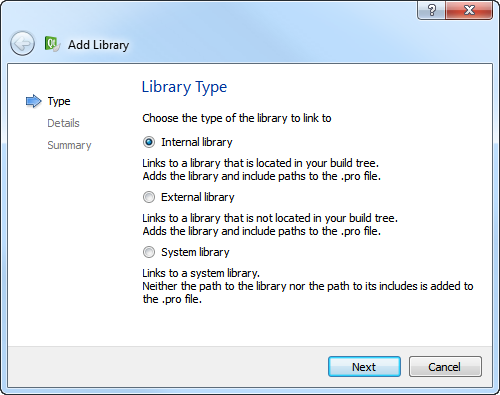
Because system libraries do not typically change and are often found by default, you do not need to specify the path to the library or to its includes when you add it.
For your own libraries and 3rd party libraries, you need to specify the paths. Qt Creator tries to quess the include path for an external library, but you need to check it and modify it if necessary. Qt Creator automatically adds the include path for an internal library.
For all libraries, select the target platforms for the application, library, or plugin.
Specify whether the library is statically or dynamically linked. For a statically linked internal library, Qt Creator adds dependencies (PRE_TARGETDEPS) in the project file.
Depending on the development platform, some options might be detected automatically. For example, on Mac OS, the library type (Library or Framework) is detected automatically and the option is hidden. However, if you develop on another platform than Mac OS and want to build your project for the Mac OS, you must specify the library type.


The default convention on Windows is that the debug and release versions of a library have the same name, but are placed in different subdirectories, usually called debug and release. If the library path does not contain either of these folders, you cannot select the option to place the libraries in separate folders.
Alternatively, the letter d can be added to the library name for the debug version. For example, if the release version is called example.lib, the debug version is called exampled.lib. You can specify that the letter is added for the debug version and removed for the release version. If the library name ends in d, deselect the Remove "d" suffix for release version option.
Qt Creator supports code completion and syntax highlighting for the added libraries once your project successfully builds and links to them.
To Add Libraries
- In the Projects pane, open the project file (.pro).
- Right-click in the code editor to open the context menu and select Add Library....
- Follow the instructions of the wizard.
For more information about the project file settings, see Declaring Other Libraries.
Example of Adding Internal Libraries
The following example describes how to add a statically linked internal library to your project.
- Choose File > New File or Project... > Other Projects > C++ Library to create the library.
The Introduction and Product Location dialog opens.
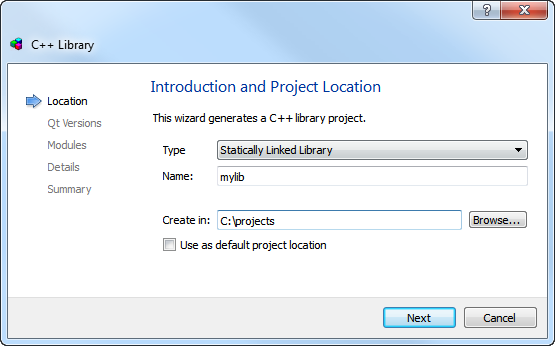
- In the Type field, select Statically Linked Library.
- In the Name field, give a name for the library. For example, mylib.
- Follow the instructions of the wizard until you get to the Project Management dialog. In the Add to project list, select a project. For example, myapp.
- In the Projects pane, open the project file (.pro). For example, myapp.pro.
- Right-click in the code editor to open the context menu and select Add Library... > Internal Library > Next.
- In the Library field, select mylib and click Next.
- Click Finish to add the following library declaration to the project file:
 win32:CONFIG(release, debug|release): LIBS += -L$$OUT_PWD/../../../projects/mylib/release/ -lmylib
 else:win32:CONFIG(debug, debug|release): LIBS += -L$$OUT_PWD/../../../projects/mylib/debug/ -lmylib
 else:symbian: LIBS += -lmylib
 else:unix: LIBS += -L$$OUT_PWD/../../../projects/mylib/ -lmylib

 INCLUDEPATH += $$PWD/../../../projects/mylib
 DEPENDPATH += $$PWD/../../../projects/mylib

 win32:CONFIG(release, debug|release): PRE_TARGETDEPS += $$OUT_PWD/../../../projects/mylib/release/mylib.lib
 else:win32:CONFIG(debug, debug|release): PRE_TARGETDEPS += $$OUT_PWD/../../../projects/mylib/debug/mylib.lib
 else:unix:!symbian: PRE_TARGETDEPS += $$OUT_PWD/../../../projects/mylib/libmylib.a
[출처] http://doc.qt.digia.com/qtcreator-2.3/creator-project-qmake-libraries.html
광고 클릭에서 발생하는 수익금은 모두 웹사이트 서버의 유지 및 관리, 그리고 기술 콘텐츠 향상을 위해 쓰여집니다.
댓글 0
| 번호 | 제목 | 글쓴이 | 날짜 | 조회 수 |
|---|---|---|---|---|
| 16 |
[C/C++ 자료구조] 아스키 코드표(ASCII Table)
 | 졸리운_곰 | 2023.08.16 | 364 |
| 15 | [C 프로그래밍] 파일 출력 함수_3.연결 리스트 저장, 불러오기 | 졸리운_곰 | 2022.06.17 | 328 |
| 14 |
[C/C++ 자료구조] 5일만에 뚝딱 스크립트 언어 만들기 PGLight (1/5)
| 졸리운_곰 | 2021.04.12 | 312 |
| 13 |
[C/C++] 미니멀 가상화폐 코드 , 미니멀 블룩체인, noincoin (Block Chain in C Major)
| 졸리운_곰 | 2021.01.30 | 282 |
| 12 |
Visual Studio Community로 V8 엔진 다운로드 및 빌드하고 간단히 살펴보기
| 졸리운_곰 | 2020.11.30 | 277 |
| 11 | zlib msvc로 포팅하기 2 | 졸리운_곰 | 2018.02.23 | 361 |
| 10 | zlib msvc로 포팅하기 1 | 졸리운_곰 | 2018.02.23 | 296 |
| 9 | zlib 개요 | 졸리운_곰 | 2018.02.23 | 579 |
| 8 | [zlib] API 사용법 | 졸리운_곰 | 2018.02.23 | 509 |
| 7 | [zlib] DEFLATE algorithm (2) - Huffman coding | 졸리운_곰 | 2018.02.23 | 352 |
| 6 | [zlib] DEFLATE algorithm (1) - LZ77 | 졸리운_곰 | 2018.02.23 | 511 |
| 5 |
zlib 입문
| 졸리운_곰 | 2018.02.23 | 653 |
| 4 | [펌] zlib를 사용법 | 졸리운_곰 | 2018.02.23 | 808 |
| 3 |
Create Custom Binary File Formats for Your Game's Data
| 졸리운_곰 | 2018.02.23 | 377 |
| 2 |
GitHub - codelibs/libdxfrw: C++ library to read and write DXF/DWG files
| 졸리운_곰 | 2017.04.27 | 661 |
| 1 | C++ Json Parser 조사 | 졸리운_곰 | 2015.11.10 | 1034 |