
- 전체
- Sample DB
- database modeling
- [표준 SQL] Standard SQL
- G-SQL
- 10-Min
- ORACLE
- MS SQLserver
- MySQL
- SQLite
- postgreSQL
- 데이터아키텍처전문가 - 국가공인자격
- 데이터 분석 전문가 [ADP]
- [국가공인] SQL 개발자/전문가
- NoSQL
- hadoop
- hadoop eco system
- big data (빅데이터)
- stat(통계) R 언어
- XML DB & XQuery
- spark
- DataBase Tool
- 데이터분석 & 데이터사이언스
- Engineer Quality Management
- [기계학습] machine learning
- 데이터 수집 및 전처리
- 국가기술자격 빅데이터분석기사
- 암호화폐 (비트코인, cryptocurrency, bitcoin)
spark [spark][sparksql][odbc][jdbc] JDBC and ODBC drivers and configuration parameters
2021.04.14 17:16
[spark][sparksql][odbc][jdbc] JDBC and ODBC drivers and configuration parameters
JDBC and ODBC drivers and configuration parameters
April 08, 2021
You can connect business intelligence (BI) tools to Databricks Workspace clusters and SQL Analytics SQL endpoints to query data in tables. This article describes how to get JDBC and ODBC drivers and configuration parameters to connect to Databricks Workspace clusters and SQL Analytics SQL endpoints. For tool-specific connection instructions, see Business intelligence tools.
Permission requirements
The permissions required to access compute resources using JDBC or ODBC depend on whether you are connecting to a Databricks Workspace cluster or SQL Analytics SQL endpoint.
Workspace cluster requirements
To access a cluster, you must have Can Attach To permission.
If you connect to a terminated cluster and have Can Restart permission, the cluster is started.
SQL Analytics SQL endpoint requirements
To access a SQL endpoint, you must have Can Use permission.
If you connect to a stopped endpoint and have Can Use permission, the SQL endpoint is started.
Prepare to connect BI tools
This section describes the steps you typically follow to prepare to connect to BI tools:
Step 1: Download and install a JDBC or ODBC driver
For some BI tools you use a JDBC or ODBC driver to make a connection to Databricks compute resources.
Step 2: Collect JDBC or ODBC connection information
To configure a JDBC or ODBC driver, you must collect connection information from Databricks. Here are some of the parameters a JDBC or ODBC driver might require:
| Parameter | Value |
|---|---|
| Authentication | See Username and password authentication. |
| Host, port, HTTP path, JDBC URL | See Get server hostname, port, HTTP path, and JDBC URL. |
The following are usually specified in the httpPath for JDBC and the DSN conf for ODBC:
| Parameter | Value |
|---|---|
| Spark server type | Spark Thrift Server |
| Schema/Database | default |
Authentication mechanism AuthMech |
See Username and password authentication. |
| Thrift transport | http |
| SSL | 1 |
Username and password authentication
This section describes how to collect the credentials for authenticating BI tools to Databricks compute resources.
When you configure authentication from your BI tool to Databricks resources the fields you set are labeled Username and Password. If SSO is enabled, set Username to the string token and Password to a personal access token. If SSO is disabled, you can either set Username to token and Password to a personal access token or set Username to your Databricks username and Password to your password.
- Username:
tokenor username - Password: A user generated token or password. The procedure for retrieving a token depends on whether you are using a Workspace cluster or a SQL Analytics SQL endpoint.
Get server hostname, port, HTTP path, and JDBC URL
The procedure for retrieving JDBC and ODBC parameters depends on whether you are using Databricks Workspace clusters and SQL Analytics SQL endpoints.
Workspace cluster
-
Click the
 icon in the sidebar.
 -
Click a cluster.
-
Click the Advanced Options toggle.
-
Click the JDBC/ODBC tab.

-
Copy the parameters required by your BI tool.
SQL Analytics SQL endpoint
-
Click the
 icon in the sidebar.
 -
Click an endpoint.
-
Click the Connection Details tab.
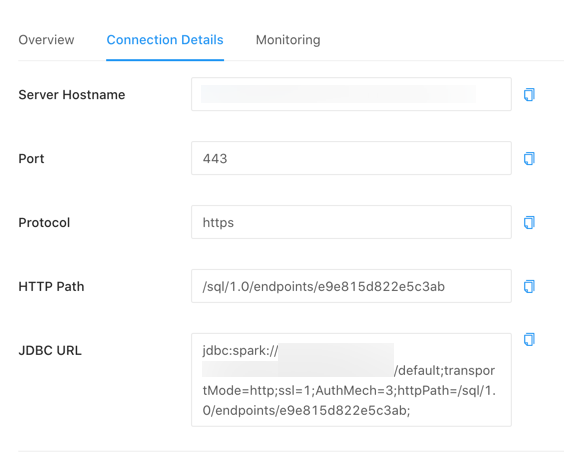
-
Copy the parameters required by your BI tool.


Configure JDBC URL
The steps for configuring the JDBC URL depend on whether you are using a Databricks Workspace cluster or a SQL Analytics SQL endpoint.
Workspace cluster
In the following URL, replace <personal-access-token> with the token you created in Username and password authentication. For example:
jdbc:spark://<server-hostname>:443/default;transportMode=http;ssl=1;httpPath=sql/protocolv1/o/0/xxxx-xxxxxx-xxxxxxxx;AuthMech=3;UID=token;PWD=<personal-access-token>
SQL Analytics SQL endpoint
Replace <personal-access-token> with the token you created in Username and password authentication. For example:
jdbc:spark://<server-hostname>:443/default;transportMode=http;ssl=1;httpPath=sql/protocolv1/o/0/xxxx-xxxxxx-xxxxxxxx;AuthMech=3;UID=token;PWD=<personal-access-token>
Configure connection for native query syntax
JDBC and ODBC drivers accept SQL queries in ANSI SQL-92 dialect and translate the queries to Spark SQL. If your application generates Spark SQL directly or your application uses any non-ANSI SQL-92 standard SQL syntax specific to Databricks, Databricks recommends that you add ;UseNativeQuery=1 to the connection configuration. With that setting, drivers pass the SQL queries verbatim to Databricks.
Configure ODBC Data Source Name for the Simba ODBC driver
The Data Source Name (DSN) configuration contains the parameters for communicating with a specific database. BI tools like Tableau usually provide a user interface for entering these parameters. If you have to install and manage the Simba ODBC driver yourself, you might need to create the configuration files and also allow your Driver Manager (ODBC Data Source Administrator on Windows and unixODBC/iODBC on Unix) to access them. Create two files: /etc/odbc.ini and /etc/odbcinst.ini.
In this section:
/etc/odbc.ini
-
Set the content of
/etc/odbc.inito:ini[Databricks-Spark] Driver=Simba Server=<server-hostname> HOST=<server-hostname> PORT=<port> SparkServerType=3 Schema=default ThriftTransport=2 SSL=1 AuthMech=3 UID=token PWD=<personal-access-token> HTTPPath=<http-path>
-
Set
<personal-access-token>to the token you retrieved in Username and password authentication. -
Set the server, port, and HTTP parameters to the ones you retrieved in Get server hostname, port, HTTP path, and JDBC URL.
/etc/odbcinst.ini
Set the content of /etc/odbcinst.ini to:
[ODBC Drivers]
Simba = Installed
[Simba Spark ODBC Driver 64-bit]
Driver = <driver-path>
Set <driver-path> according to the operating system you chose when you downloaded the driver in Step 1:
- MacOs
/Library/simba/spark/lib/libsparkodbc_sbu.dylib - Linux (64-bit)
/opt/simba/spark/lib/64/libsparkodbc_sb64.so - Linux (32-bit)
/opt/simba/spark/lib/32/libsparkodbc_sb32.so
Configure paths of ODBC configuration files
Specify the paths of the two files in environment variables so that they can be used by the Driver Manager:
export ODBCINI=/etc/odbc.ini
export ODBCSYSINI=/etc/odbcinst.ini
export SIMBASPARKINI=<simba-ini-path>/simba.sparkodbc.ini # (Contains the configuration for debugging the Simba driver)
where <simba-ini-path> is
- MacOS
/Library/simba/spark/lib - Linux (64-bit)
/opt/simba/sparkodbc/lib/64 - Linux (32-bit)
/opt/simba/sparkodbc/lib/32
Troubleshooting
[출처] https://docs.databricks.com/integrations/bi/jdbc-odbc-bi.html
광고 클릭에서 발생하는 수익금은 모두 웹사이트 서버의 유지 및 관리, 그리고 기술 콘텐츠 향상을 위해 쓰여집니다.
