
How To Make an App For Your Website In Less Than 30 Minutes
2018.09.03 13:27
How To Make an App For Your Website In Less Than 30 Minutes
1. Choosing a responsive WordPress theme with a strong mobile view
In this last app of the MySQL/Web host article series, you’re going to be setting up a new website and applying a WordPress theme which has an app-like mobile responsive layout.
When we display this website in our app using a UIWebView, it will look and feel like an app but the user will actually be interacting with the website itself.
Some good candidates for this type of app are portfolios, resumes or content based apps.
You’ll get a discount, I’ll receive a bonus at no extra cost to you and this supports my efforts in publishing free tutorials. Thank you!
We’re going to create a brand new WordPress installation. You won’t need another domain name but you can get one if you want.
In this tutorial, we’re going to create a new WordPress installation in a sub-directory because when we display the site in the web view, the user won’t see the domain name or web address anyways.
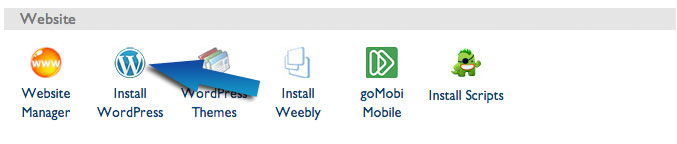
Start by going to your Bluehost control panel and looking for the “Install WordPress” icon:
On the next screen, choose “Start a brand new install”.

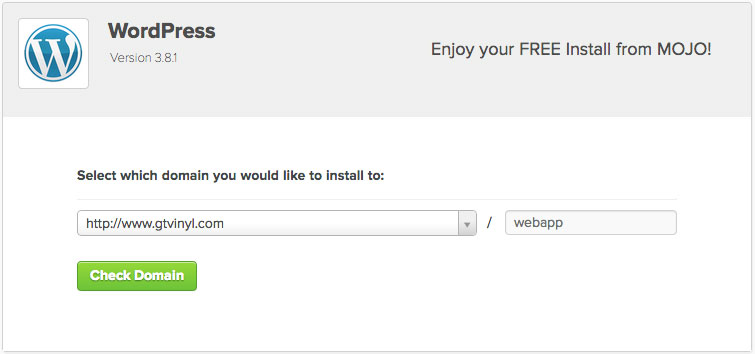
Then you’ll get to select the domain name you registered with your Bluehost hosting account but you’ll also want to specify a directory to install in because we already have a site set up on the root of the domain from the previous app that we did.
Fill in “webapp” for the directory field and click “Check Domain”.
The rest of the WordPress installation steps are the same as in the last chapter.
Click here if you don’t remember!
1.2 Finding a mobile responsive theme
There are a lot of free mobile responsive WordPress themes that you can get.
Go to Google.com and search for “free responsive wordpress themes” and you’ll find a lot of articles which aggregate a whole bunch of free themes.
What you want to do is to check out the live demos of the themes and usually they’ll have a button to show you how the theme would look like in a mobile view.


By clicking that button, you can see what it would look like if it were displayed in a UIWebView in your app.
You want to find something that resembles an app. I find that the themes which use large photo like tiles for navigation seem to look the most app-like to me.
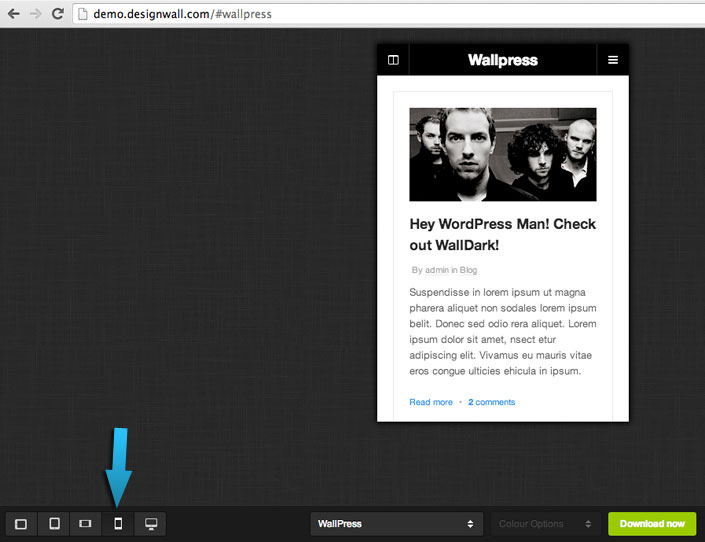
Here’s a free one which resembles an app when it’s in a mobile view:
http://demo.designwall.com/#wallpress
This is the iPhone view
And if you have an iPad, this would be what the theme would look like on it:
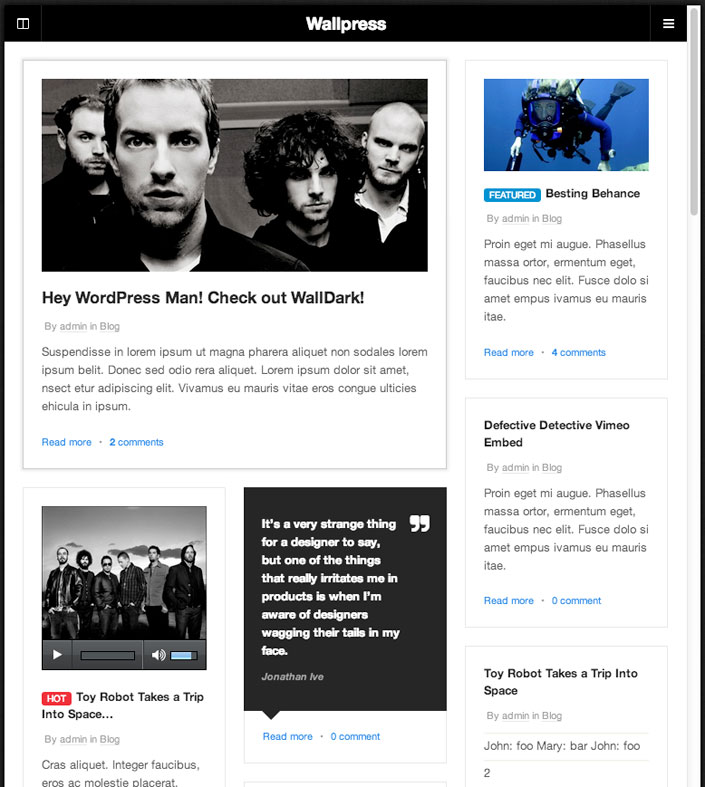
Pretty cool, right?
Another one that looks promising as a mobile view is this one, also from Design Wall (unfortunately, this one is not a free theme):
http://www.designwall.com/wordpress/themes/dw-fixel/
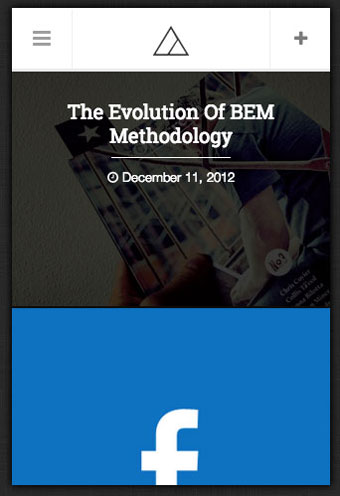
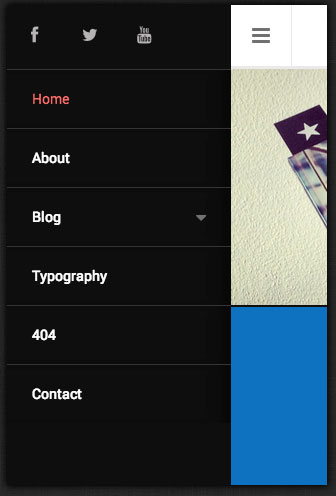
When you’ve found one that you like, download the zip file.
1.3 Installing a new WordPress theme
Login to your WordPress sites admin area (youdomain.com/webapp/wp-admin) and go to your themes section under the Appearance menu.
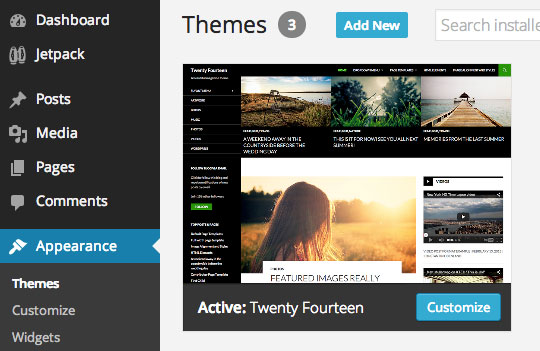
Click “Add New” and then “Upload”. Choose the zip file of the theme you downloaded and it will install it.
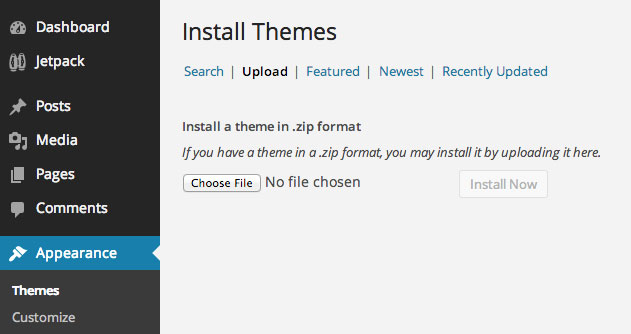
Then you need to click the “Activate” link to set your site to use this theme.
Go to your domain/webapp and you should see your new WordPress theme!
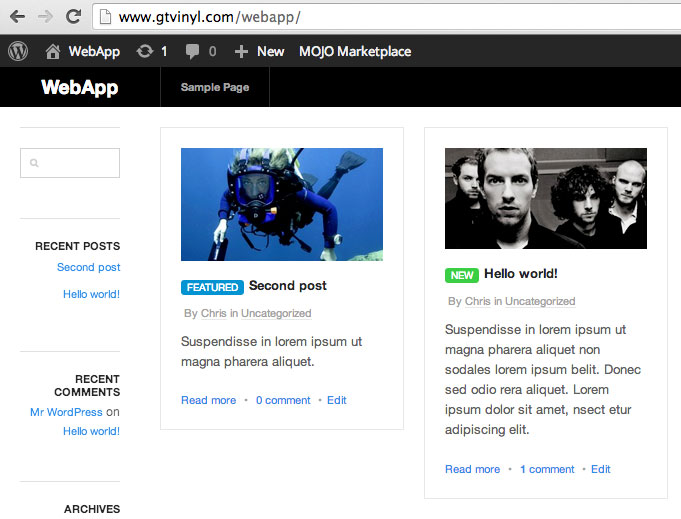
What you’re seeing is not the mobile responsive view though, so let’s create the iPhone app with the UIWebView and display this URL.
2. How to make an iPhone app that leverages the mobile version of your website
Since this is going to be the third app that we do in this series, you should be pretty familiar with the process of creating a new single view application Xcode project.
Go ahead and do it now 본 웹사이트는 광고를 포함하고 있습니다.
광고 클릭에서 발생하는 수익금은 모두 웹사이트 서버의 유지 및 관리, 그리고 기술 콘텐츠 향상을 위해 쓰여집니다.