
- 전체
- C/C++ 일반
- C/C++ 수학
- C/C++ 그래픽
- C/C++ 자료구조
- C/C++ 인공지능
- C/C++ 인터넷
- wxWidget
- GTK+
- UNIX or LINUX programming
- 리눅스 마스터 - 국가공인자격
- VC++/ MFC
- C#/CLI/.NET
- QT/기타UI
- Boost lib
- 오픈소스 C 분석자료
- MSA (마이크로서비스), Docker, kubernetes
- WSL(windows subsystem linux)
리눅스 마스터 - 국가공인자격 [linux telnet(ssh) 창에서 MSDOS emulation 에뮬레이션 Install dosemu2 dos emulator in Ubuntu and Ubuntu based distributions
2024.01.05 01:57
[linux telnet(ssh) 창에서 MSDOS emulation 에뮬레이션 Install dosemu2 dos emulator in Ubuntu and Ubuntu based distributions
Install dosemu2 dos emulator in Ubuntu and Ubuntu based distributions
dosbox is the most popular emulator for running old dos applications and games, however I recently discovered doseemu2 which is another dos emulator available in Ubuntu and Ubuntu based distributions.
To install dosemu2 you need to add a new repository, to do this enter the following command in the terminal
Then install dosemu2 with the following command
Once installed dosemu2 can be launched from the terminal using the following command, or from the applications menu in your distribution
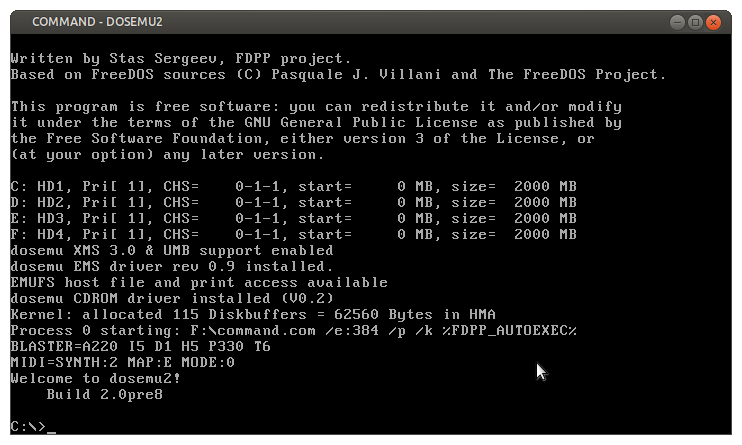
dosemu2 will create a new folder in your home directory .dosemu
This is a hidden folder, so in your file manager select view hidden files.
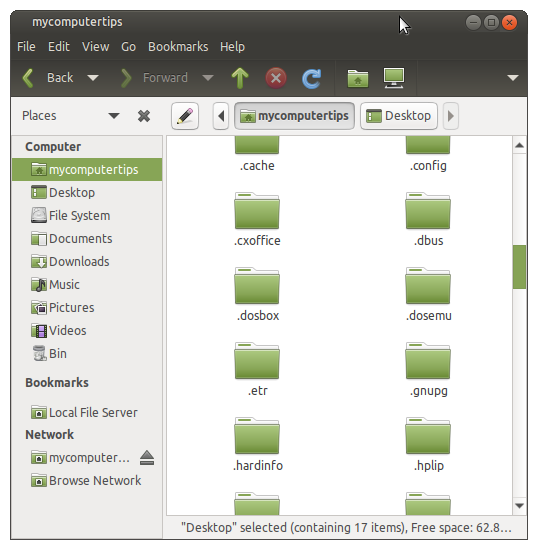
Inside the .dosemu folder you will see the drive_c folder, this is where you need to copy your application or game files.
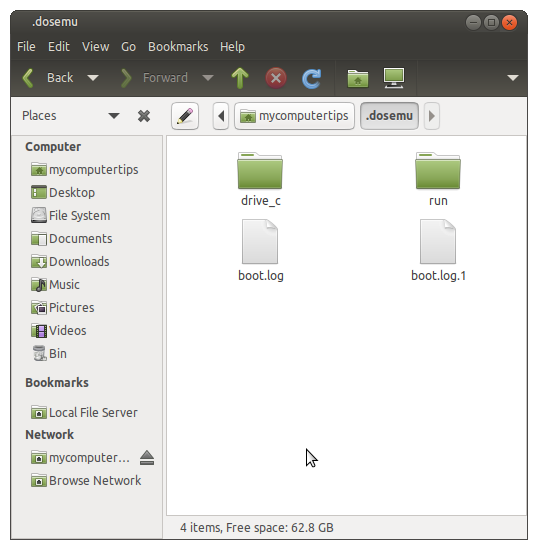
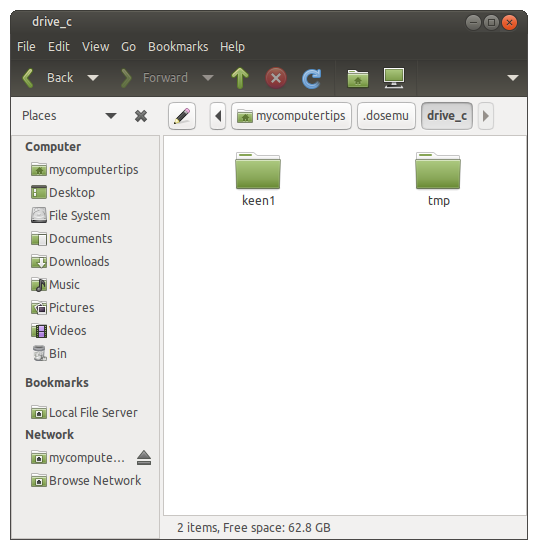
Once you have copied over your files, go back to the terminal. Ensure dosemu is running and issue the dir command to list the folders and files in drive_c. Then cd in to the directory of application or game you would like to run and launch it.
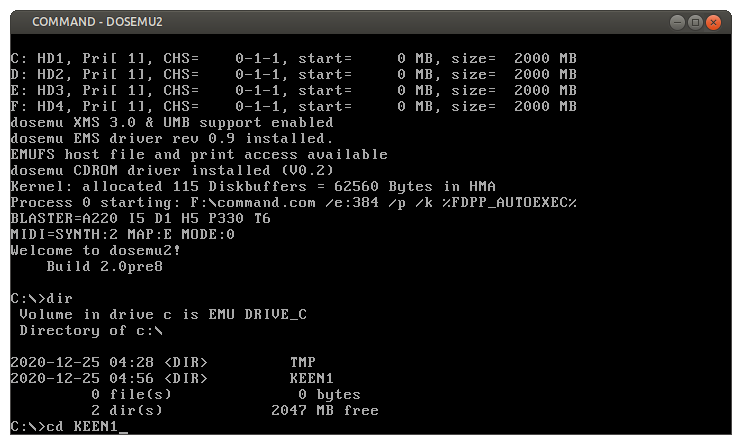
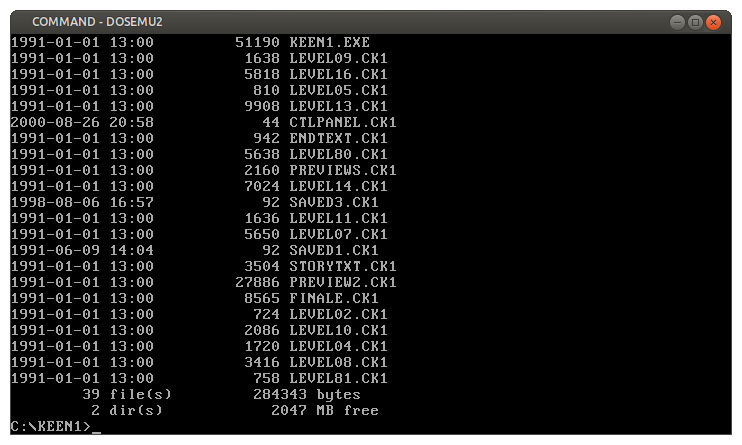


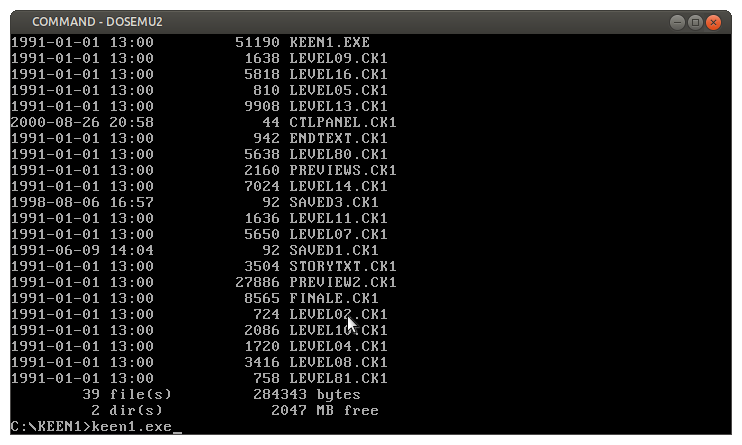
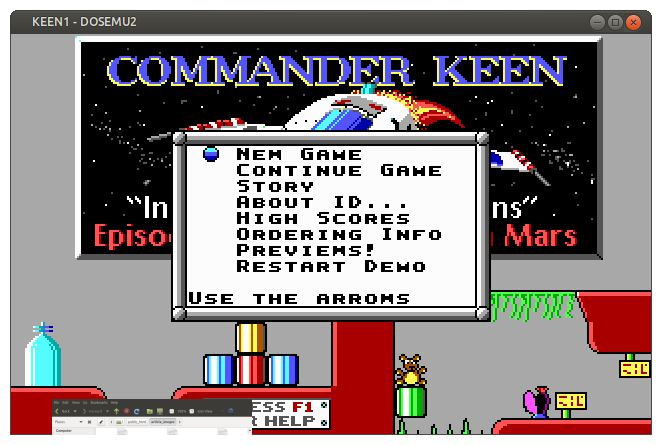
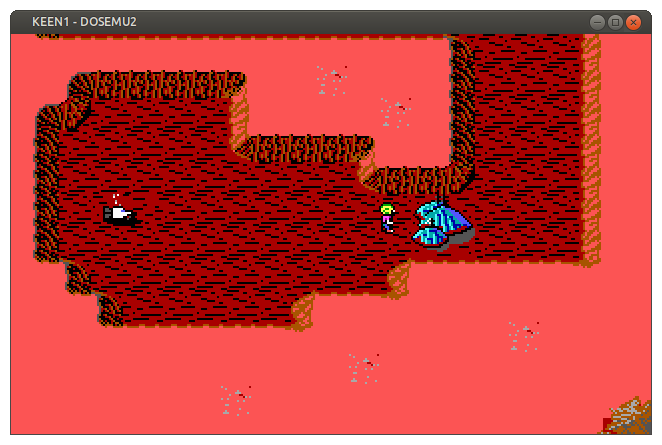
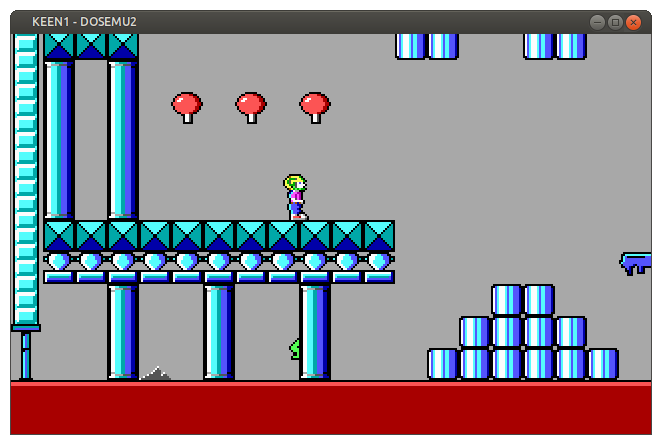
To launch dosemu in fullscreen enter the following command
For all dosemu options, open the terminal and enter the following command
So far I have not experienced any issues using dosemu. It is much easier to setup than dosbox for beginners, as you don't need to edit any configuration files to mount C: drive.
[출처] https://www.mycomputertips.co.uk/238
광고 클릭에서 발생하는 수익금은 모두 웹사이트 서버의 유지 및 관리, 그리고 기술 콘텐츠 향상을 위해 쓰여집니다.

