
- 전체
- C/C++ 일반
- C/C++ 수학
- C/C++ 그래픽
- C/C++ 자료구조
- C/C++ 인공지능
- C/C++ 인터넷
- wxWidget
- GTK+
- UNIX or LINUX programming
- 리눅스 마스터 - 국가공인자격
- VC++/ MFC
- C#/CLI/.NET
- QT/기타UI
- Boost lib
- 오픈소스 C 분석자료
- MSA (마이크로서비스), Docker, kubernetes
- WSL(windows subsystem linux)
리눅스 마스터 - 국가공인자격 [리눅스 GUI 하드디스크 상태 모니터링 툴] GSmartControl - A GUI Tool to Check HDD/SSD Health on Linux
2018.01.16 13:33
[리눅스 GUI 하드디스크 상태 모니터링 툴]
GSmartControl - A GUI Tool to Check HDD/SSD Health on Linux
GSmartControl is a GUI alternative for smartctl, a tool for controlling SMART data on hard disk drives and solid state drives. With this software, you can check the SMART data in order to determine its health. It also allows you to run different tests.
What is SMART?
Its an acronym for Self Monitoring Analysis and Reporting Technology, a technology that makes it possible to detect HDD and SDD failures. The early detection of potential problems allows the user to get informed about the situation and make a backup and/or replace the drive before reaching the point of loosing important information.
Features
This tool supports ATA drives (PATA and SATA), some USB to ATA bridges and some RAID controllers. You can check the list of supported devices.
These are some of its features:
- Automatic anomalies reporting
- Enable / Disable SMART
- Perform SMART tests
- Display device information
- Enable / Disable Automatic Offline Data Collection
- Ease of use
- Nice documentation
Installation
Ubuntu
Tested in: Xubuntu 17.10 / Ubuntu 16.04 LTS
$ sudo apt-get install gsmartcontrol
Arch Linux
Tested in: Arch Linux 2017.11.01
$ sudo pacman -S gsmartcontrol
Fedora
Tested in: Fedora 27 Workstation
$ sudo dnf install gsmartcontrol
Usage
In this section, I'll demonstrate some of the interesting features of this tool. You can check the official documentationif you need deeper information.
Getting started
You can open the software either from your desktop environment menu, or simply by typing a command in the terminal.
In this case, I'll open it through the terminal:
$ sudo gsmartcontrol
Notice that it's important to open it as a root, in order to have full access to your devices.
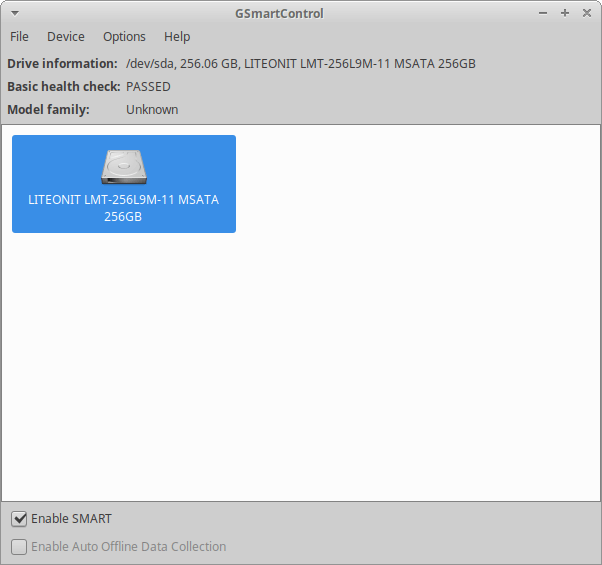
This is the main menu, which lists your connected drives:
Device information


You can check a lot of interesting parameters of your drive. Just right click on the desired device and select View details.
A new window will appear displaying some details of the drive, such as Model, Serial Number, Capacity, Health Test Status (PASSED / NOT PASSED), etc.
The General section looks like this:
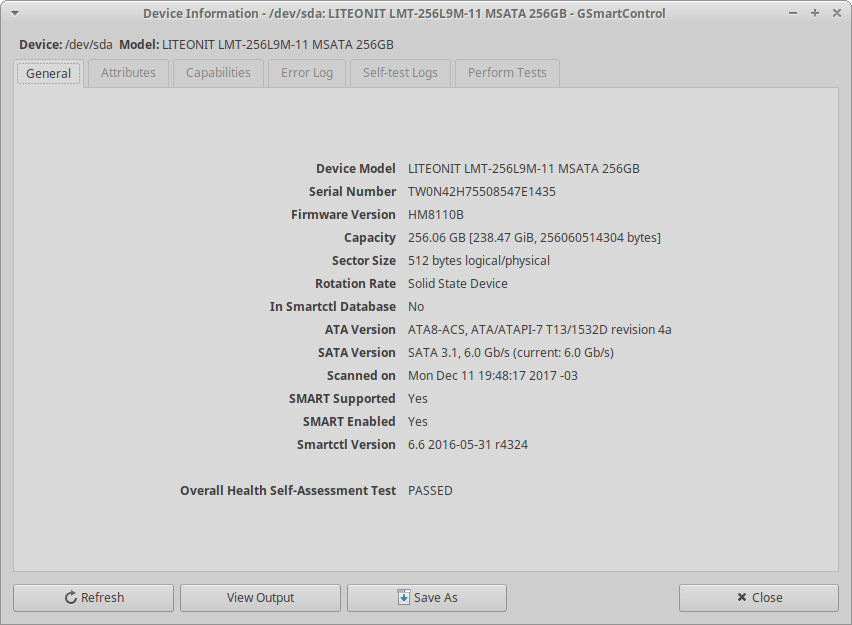
You can also view the raw data given by smartctl and save it to a .txt file.
This is the content of the Attributes tab:
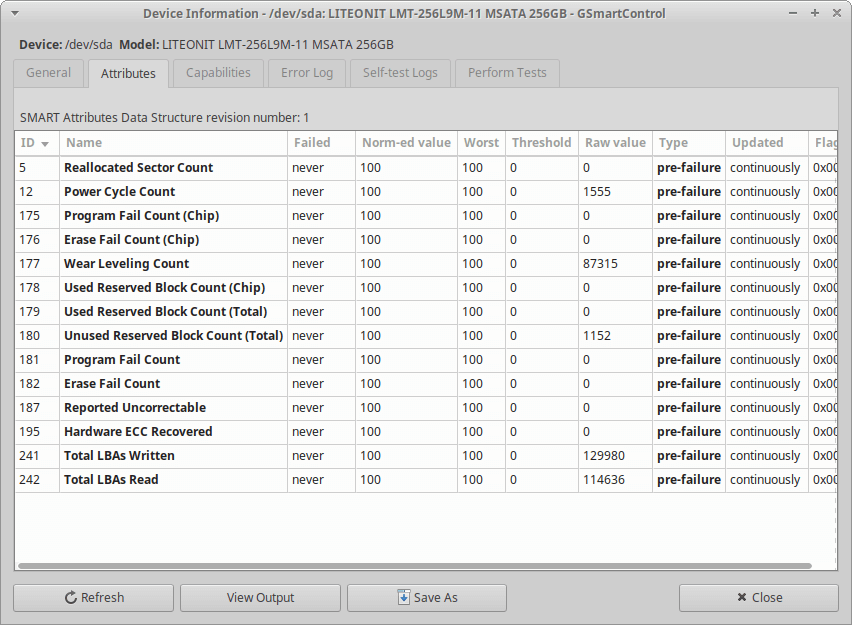
This section deserves some further explanation. Here you can see some important SMART attributes that will tell the health of your drive. Some of the most important ones are the following (note that some of them are not displayed in the screenshot, that's because the given SMART data depends on the drive you have):
- Reallocated Sector Count: Represents the number of sectors that couldn't be written by the SMART assessment. They are marked as damaged.
- Reported Uncorrectable: This attribute represents the number of sectors that couldn't be recovered by the drive's error correction system. If you have a high value here, it's probably that your drive will fail soon.
- Power Cycle Count: Indicates the count of the drive's power on / off cycles. This can help you to determine if the drive has been used intensely or not, which is useful for example if you want to buy an used drive.
- Wear Leveling Count: Shows the remaining endurance of the drive in percentage, it starts in 100 (best value) and decreases to 0 linearly as it gets written.
- Spin Retry Count: Count of retry spin start attempts. When a spin start is unsuccessful, this counts the attempts done to do a full-speed spin start. This attribute is for HDDs, and the higher value denotes that it may be suffering a mechanical problem.
Those are some important attributes, you can see them all on SMART Wikipedia page. You should check your drive's user manual first so as to know how to read Normalized, Raw, and other values (the interpretation may vary depending on the manufacturer).
Perform Tests
You can perform some tests to recognize drive faults. They are safe and can be done during normal system conditions. They may take longer if the drive is not idle, and you won't be able to check SMART data while running them.
If you want to perform one, just go to Perform Tests tab, select the text type, and execute it. After that, the result will be displayed under the progress bar. You can also go to Self-test Logs tab and check the results.
Wrapping up
This practical tool can help you to check your drive status in an easy way. As I've showed you, the software is very intuitive, the only thing that you have to know is how to interpret SMART. If you know how to do that, you're ready to go, and if not, there is a lot of documentation over the internet!
You can use this tool to check your drives regularly to detect failures, to check an used drive that you want to buy and for other purposes. Now you'll be able to take care of them and avoid unwanted data losses :-)
[출처] https://linoxide.com/hrdwre/gsmartcontrol-gui-tool-check-hdd-ssd-health-linux/
광고 클릭에서 발생하는 수익금은 모두 웹사이트 서버의 유지 및 관리, 그리고 기술 콘텐츠 향상을 위해 쓰여집니다.
