
Create Microsoft SQL Server container in Docker and use Oracle SQL Developer as client tool.
1. What is SQL Server?
SQL Server is a relational database management system (RDBMS) developed by Microsoft. SQL Server is originally released to Windows platform. Recently, Microsoft released the linux version. In this tutorial, we will use docker to install SQL Server for Linux. Thus, we can use it on Mac.
2. Prerequisite
2.1 Docker Machine with Large Storage
The SQL Server container requires at least 3.25 GB of RAM and large storage. If you are unable to install it because of the ‘no space left on device’ error, you have to create a new docker machine with large storage assigned. For more details, refer to Creating Docker Machine with More Disk Space.
3. Creating SQL Server Container in Kitematic
3.1 Creating SQL Server Container
Search mssql-server-linux(Released by Microsoft) in Kitematic, click Create button. 
Kitematic will start to download the image and create container for it. 
The installation takes several minutes. Finally, the container is created but it’s in ‘stopped’ status. We have to make some changes before using it. 
3.2 Environment Variables
Switch to Settings tab, add two environment variables. Accept the license by setting ACCEPT_EULA to Y. And create password for default user sa.
- ACCEPT_EULA=Y
- MSSQL_SA_PASSWORD=Abc%123456789

3.3 Interactive Shell
Click the ‘EXEC’ button to start an interactive shell. 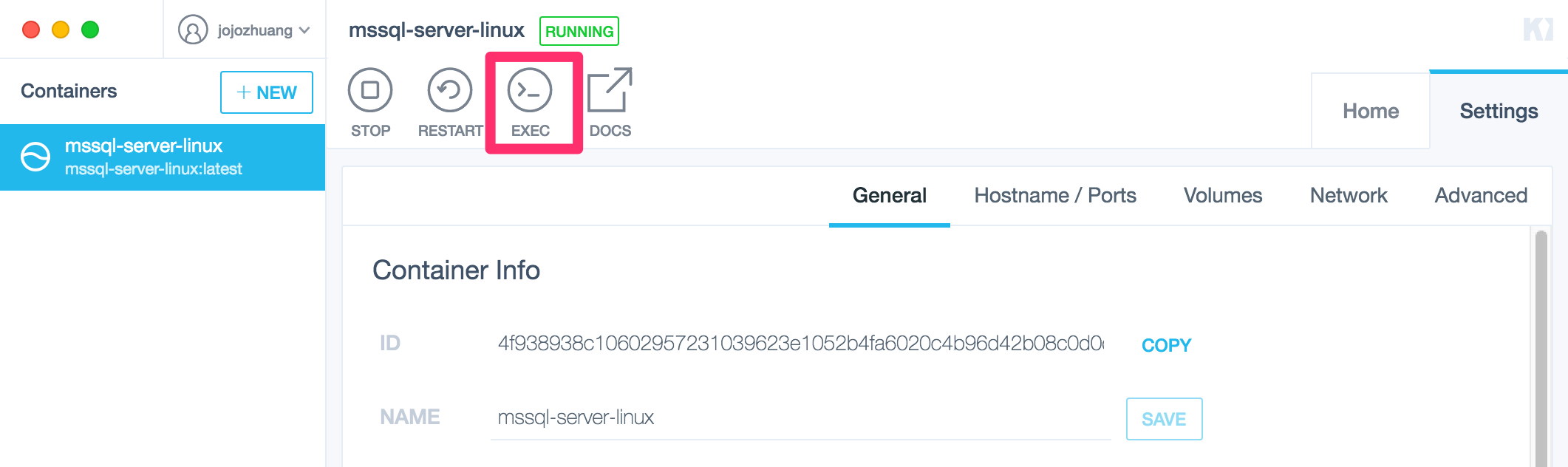 Now, we are in the bash shell for sql server.
4. Creating SQL Server Container in Command Line
4.1 Creating SQL Server Container
Download mssql-server-linux image and create container for it.
$ docker pull microsoft/mssql-server-linux
$ docker run -e 'ACCEPT_EULA=Y' -e 'MSSQL_SA_PASSWORD=Abc%123456789' -p 1401:1433 --name mssql -d microsoft/mssql-server-linux
What is this command doing?
- Create a mssql-server-linux container named mssql.
- Set environment variable ACCEPT_EULA to Y.
- Set environment variable MSSQL_SA_PASSWORD to Abc%123456789.
- Expose 1433 and map to 1401 for outside world to connect to this SQL Server database.
Check the running containers with following command.
$ docker ps -a

In Kitematic, we also see a new container. 
If the container is not launched properly, check logs with following command to get some clues.
$ docker logs <containerid>
4.2 Interactive Shell
Start an interactive bash shell with following command.
docker exec -it mssql "bash"

5. Using SQL Server
5.1 Connecting SQL Server
Inside the interactive shell, connect SQL Server locally with sqlcmd.
$ /opt/mssql-tools/bin/sqlcmd -S localhost -U SA -P 'Abc%123456789'
5.2 Creating Database
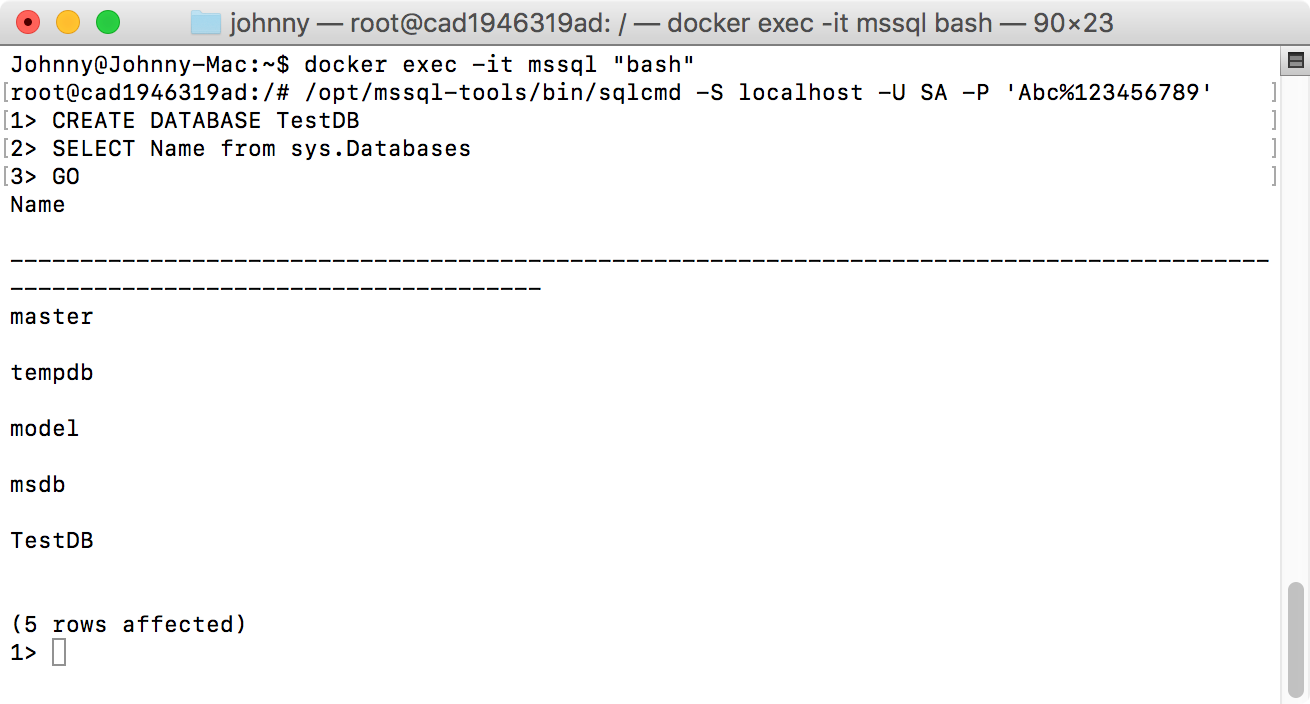
Run the following sql script to create new database named TestDB.
CREATE DATABASE TestDB |
SELECT Name from sys.Databases |
GO |


5.3 Creating Table and Inserting Data
Run the following sql script to create new table named Inventory, and create two rows for it.
USE TestDB |
CREATE TABLE Inventory (id INT, name NVARCHAR(50), quantity INT) |
INSERT INTO Inventory VALUES (1, 'banana', 150); INSERT INTO Inventory VALUES (2, 'orange', 154); |
GO |

5.4 Querying Data
Run the following sql script to find rows whose quantity is larger than 152.
SELECT * FROM Inventory WHERE quantity > 152; |
GO |

6. SQL Client Tool
It’s more convenient to use UI client tool to manipulate database.
6.1 Getting Oracle SQL Developer
Go to http://www.oracle.com/technetwork/developer-tools/sql-developer/downloads/index.html, download SQL Developer for Mac OSX. Unzip the package file, there is only one file named SQLDeveloper.
6.2 Getting Plugin File
Go to https://sourceforge.net/projects/jtds/files/, downland jtds-1.3.1-dist.zip. Extract jtds-1.3.1.jar from the package file. It is a plugin module for SQL Server and Sybase JDBC.
6.3 Importing Plugin to SQL Developer
Launch SQL Developer, go to -> Preferences -> Database -> Third-party JDBC Drivers, add the jar file. 
6.4 Creating Connection
In SQL Developer, New Connection.., provide the user, password, host and port mentioned when we create the SQL Server container. Test and Connect. 
Connection is created. After expanding the nodes by level, you will see the database and table we created through bash shell. 
6.5 Running Query
Right-click on the TestDB database, and choose Select Default Database. 
Then, apply. 
In the worksheet, input the following sql script and run. You will see all rows in table Inventory.
SELECT * FROM Inventory;

7. Others
7.1 Restoring Database with Backup File
The following command copies the backup file named ShoeStore.bak to the root directory of SQLServer container named mssql.
$ docker cp ShoeStore.bak mssql:/ShoeStore.bak
Go to interactive bash shell and connect to SQL Server.
$ docker exec -it mssql "bash"
$ /opt/mssql-tools/bin/sqlcmd -S localhost -U SA -P 'Abc%123456789'
Use the following sql script to restore the database.
RESTORE DATABASE ShoeStore
FROM DISK = '/ShoeStore.bak'
WITH MOVE 'ShoeStore' TO '/var/opt/mssql/data/ShoeStore.mdf',
MOVE 'ShoeStore_Log' TO '/var/opt/mssql/data/ShoeStore_Log.ldf'
GO
For .Net Applications, the connectionString looks like below. 1401 is the port number.
<add name="EFDbContext" connectionString="server=192.168.99.100,1401;database=ShoeStore;uid=sa;pwd=Abc%123456789;MultipleActiveResultSets=true;" providerName="System.Data.SqlClient" />
8. References
- SQL Server at Microsoft
- MS SQL Server Tutorial
- mssql-server-linux on Docker Hub
- Installation guidance for SQL Server on Linux
- Run the SQL Server 2017 container image with Docker
- SQL Client for Mac OS X that works with MS SQL Server
- Migrate a SQL Server database from Windows to Linux using backup and restore
