
- 전체
- Python 일반
- Python 수학
- Python 그래픽
- Python 자료구조
- Python 인공지능
- Python 인터넷
- Python SAGE
- wxPython
- TkInter
- iPython
- wxPython
- pyQT
- Jython
- django
- flask
- blender python scripting
- python for minecraft
- Python 데이터 분석
- Python RPA
- cython
- PyCharm
- pySide
- kivy (python)
Python RPA [python RPA] Robotic Process Automation with Python
2022.03.03 21:22
[python RPA] Robotic Process Automation with Python
Robotic Process Automation with Python
Introduction
Automating repetitive work is one of the main goals of Robotic Process Automation. One of these procedures is the daily download of datasets, necessary to keep the data used by given scripts updated.
Robotic Process Automation (RPA) refers to all technologies, products and processes involved in the automation of work processes and we assume you already have some knowledge about it. If not, you can check our previous article Introduction to Robotic Process Automation.
Automatic download of data
Suppose you wrote a program related to some CoVid-19 data. It could be a script to show the trends of the global pandemic on your website or a Machine Learning algorithm to predict how the pandemic will spread in the next weeks or anything related to the CoVid-19 data.
We assume your solution is based on the dataset available at this page, which is a collection of the COVID-19 data maintained by Our World in Data. It is updated daily and includes data on confirmed cases, deaths, and testing. Obviously you want to keep your solution up to date. It means you need to download the latest version of the dataset every day and replace the older one with it.
The dataset is available in CSV, XLSX, and JSON formats. We assume the one you are interested in is the CSV format.
It is a boring job and you probably will stop doing it after a few days. But what if it was a robot doing such a job? In this section we will see how to implement an RPA to automate it.
We assume you are familiar with Python and have already installed the rpa package. For details on the installation please refer to our previous article Introduction to Robotic Process Automation.
The first thing we need to do is to import the rpa package and initialize the rpa object.
import rparpa.init(visual_automation=True, chrome_browser=True)
We can now navigate to the Coronavirus Source Data website. Since it is an institution website, we expect the page structure not to change during time.
rpa.url("https://ourworldindata.org/coronavirus-source-data")
In order to define what the next step will be, try thinking of what you would do if you had to manually download the data. The answer is clicking on the hyperlink we highlighted on the following screenshot:
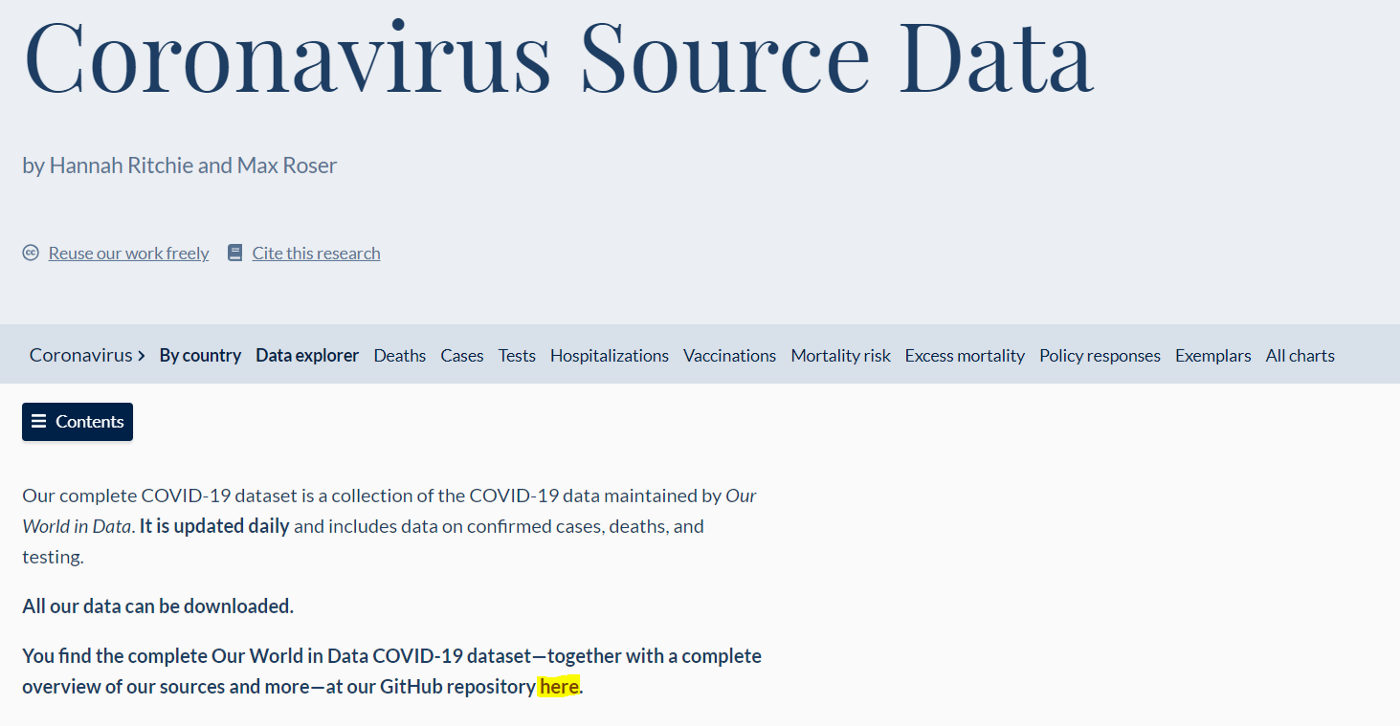
Thus we need our robot to click on the “here” hyperlink. We can do so using the click method. It needs the hyperlink identifier as input which we can discover by inspecting the web page. Indeed by using the F12 shortcut, the DevTools console will open. We can now use the “CTRL + SHIFT + C” to select the hyperlink and inspect it.
The element should look like this: <a href=“https://github.com/owid/covid-19-data/tree/master/public/data”>here</a>.
The <a> tag defines a hyperlink, which is used to link from one page to another. The most important attribute of the <a> element is the href attribute, which indicates the link’s destination.
In general, web page developers can assign a specific id, class, and so on to a tag. In these cases it is useful to be able to anchor to ids or combinations of classes to identify an object on the page. However this time we are unlucky and can only rely on the label, i.e. “here”.


It means that to make the robot click on “here” we can simply write as follows:
rpa.click("here")
Note that if there are two hyperlinks with the same label “here” and we execute rpa.click("here"), then the robot will click on the first one it finds. If, on the other hand, the inserted label does not correspond to any element of the page, the robot will print the error “[RPA] [ERROR] — cannot find …” and return False instead of None.
As you can see from the browser window, we have now been redirected to the Our World in Data GitHub repository. Of course we could have navigated to this page directly, but we wanted to practice with RPA.
As you did before, try to guess what the next step is.
Yes, we need to click on “CSV” to download the data:
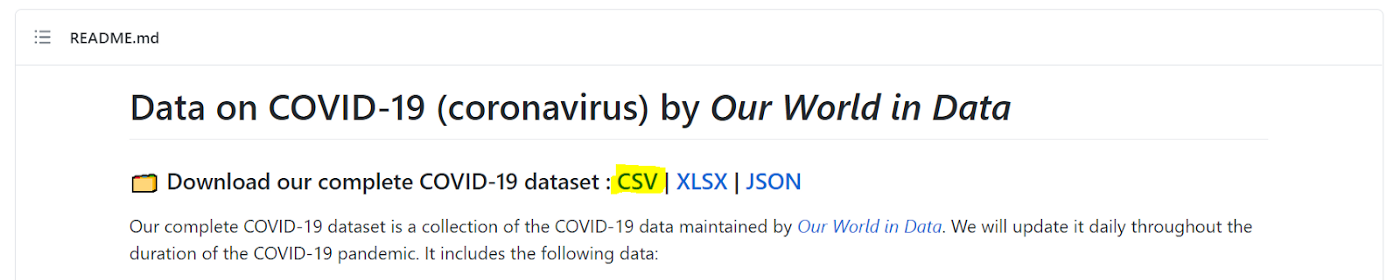
The element looks like <a href="https://covid.ourworldindata.org/data/owid-covid-data.csv" rel="nofollow">CSV</a>. Note that rel="nofollow" is a setting that directs search engines not to use the link for page ranking calculations.
As we did before, we can identify the element with its text so we can make the robot click on “CSV”. It will download the file and place it in the same folder of your RPA script.
rpa.click("CSV")
We now have our data and we can move it to the input folder of the program to replace the current file. You can do it via RPA or using the shutil package. Obviously the latter is the easiest and fastest way, but if you want to practice with RPA you can try the first one.
Once you are done with the rpa object, always remember to close it:
rpa.close()
Conclusion
You should now be more confident and independent with the rpa Python package. Keep practicing with it and you will be able to automate all the boring process you now have to perform manually!
[출처] https://medium.com/betacom/robotic-process-automation-with-python-66befa206bc4
광고 클릭에서 발생하는 수익금은 모두 웹사이트 서버의 유지 및 관리, 그리고 기술 콘텐츠 향상을 위해 쓰여집니다.
