
Overview
Marc Andreessen penned his now famous essay, “Why Software Is Eating the World” in Wall Street Journal in 2011. However, if we dig under the covers, it's really virtualization that is powering this phenomenon. Today, literally every hardware component such as - processor, memory, network, storage, network load-balancer, network router and switch, firewall are virtualized. In fact, even a user is now "virtualized" especially in scenarios such as load testing and synthetic monitoring. Finally, as a concept, money is also virtualized in the form of crypto-currencies.
In this post, let's go through how we can implement virtualization in a local machine and get better understanding of the concepts of virtualization.
Virtualization
One key aspect, driver and benefit of virtualization is sharing of the physical resources. Before we dive in, let's define some concepts.
- Host Machine - This can be a server rack, single server or a desktop/laptop. In our case, it is a laptop. Typically, virtualization has to be configured in the hardware BIOS.
- Host Resources - These are the "physical" resources in the host machine such as cpu, memory, network cards, disk, display. peripheral devices.
- Host OS - The operating system of the host machine. In addition, virtualization software/drivers need to be installed int he Host OS too.
- Guest VM - This is the "virtual machine" that will be created. So, one could create multiple VM's in a single physical machine.
- Guest Resources - Each guest VM can have it's own set of resources. For example, it is possible to create a VM without a display attached to it.
- Guest OS - In each VM, one can have different operating systems and applications.
- Hypervisor - Type 1 or Type 2
Hypervisor
The key construct of virtualization is a hypervisor. Hypervisor is the component that allocates and manages the various physical resources among the virtual machines. There are broadly two types of hypervisors - Type 1 and Type 2.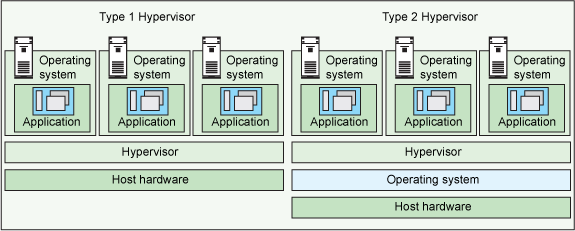 |
| Image Source: IBM |
As seen in the figure above, Type 1 hypervisors (Hyper-V, VMWare ESX etc.) are more closely integrated with the host OS. Type 2 hypervisors (Oracle Virtual Box, VMWare Player etc.) run as an "application" on to of the Host OS. For running applications in "live" environment, Type 1 is typically used. Type 2 is more used in the "development" environment. However, now with Hyper-V from Microsoft, it is now possible to have a Type 1 hypervisor that can be used in a Windows desktop/laptop.
Exercise
In this example, the following are going to be used -
- Host Machine - Dell Inspiron 15 7000 Gaming laptop.
- Host Resources - The laptop has 8 logical cores (i7 Processor). 16 GB RAM, 1 TB Hard Disk and 1 Network Card.
- Host OS - Windows 10 Professional.
- Guest VM - 1 Guest VM.
- Guest Resources - Guest VM has 4 cores, 10 GB RAM and virtual hard disk assigned to it.
- Guest OS - Cent OS 6.
- Hypervisor - Type 1 (Windows Hyper V)
Prerequisites
- Ensure that the virtualization is enabled in the desktop/laptop BIOS.
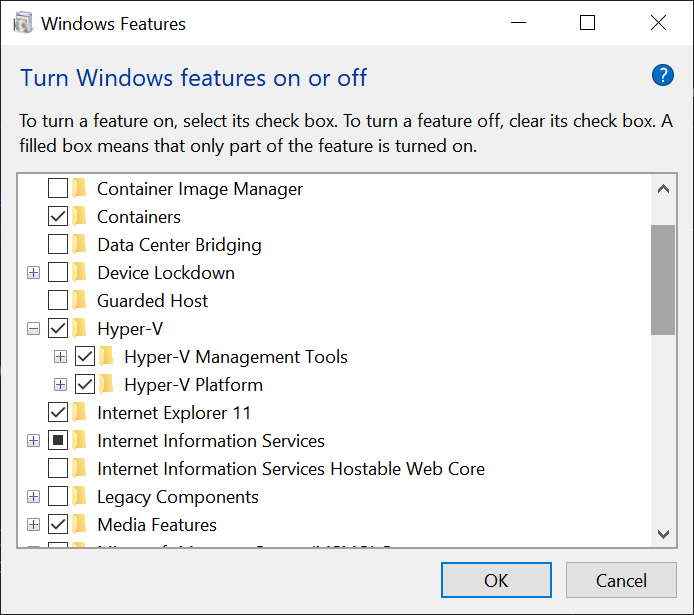
- Open the "Windows Features" option under "Control Panel". Enable Hyper-V option as shown below. Restart the desktop/laptop.
Setup
In this example, let's deliberately take a complex use case. We need a big data framework to be setup. Let's look at Cloudera distribution. Cloudera internally consists of various software components such as HDFS, HBase, Impala, Solr, Spark etc. It is possible to setup these components separately, but it is time consuming and error prone. Here comes virtualization to the rescue!The steps are -
- Download the VMWare image of Cloudera Quick VM. Copy it to a folder say "D:\Temp".
- Install Oracle Virtual Box.
- Open the Virtual Box folder in Command Prompt. Run this command to convert the image from VMWare to Hyper-V format - vboxmanage clonehd “D:\Temp\cloudera-quickstart-vm-5.13.0-0-vmware\cloudera-quickstart-vm-5.13.0-0-vmware.vmdk” “D:\Temp\cloudera-quickstart-vm-5.13.0-0-vmware.vhd" --format vhd
- Open the Hyper-V Manager and create a new VM. Create a new external virtual switch and call it 'External Switch'.
- Create a new VM with following settings -
- Generation 1 VM
- 4 Cores
- Min 8 GB, Max - 10 GB RAM (with dynamic allocation)
- Instead of creating a new virtual hard disk, assign the virtual hard disk created above
- Assign the 'External Switch'
- Start the VM.
- The user id and password for the VM and all services is cloudera/cloudera.
- Depending on the amount of CPU and memory assigned to the VM, allow the various Cloudera services to start. It may take anywhere from 3-5 minutes.
- Once all the services are up, the Cloudera instance can be used by connecting to the VM.
Tests
You can also get the IP address of the VM and open http://[VM IP Address]:7180 in the host machine browser to access Cloudera Manager.

This is a big data framework after all. Let's now see if we can ingest some sample data.
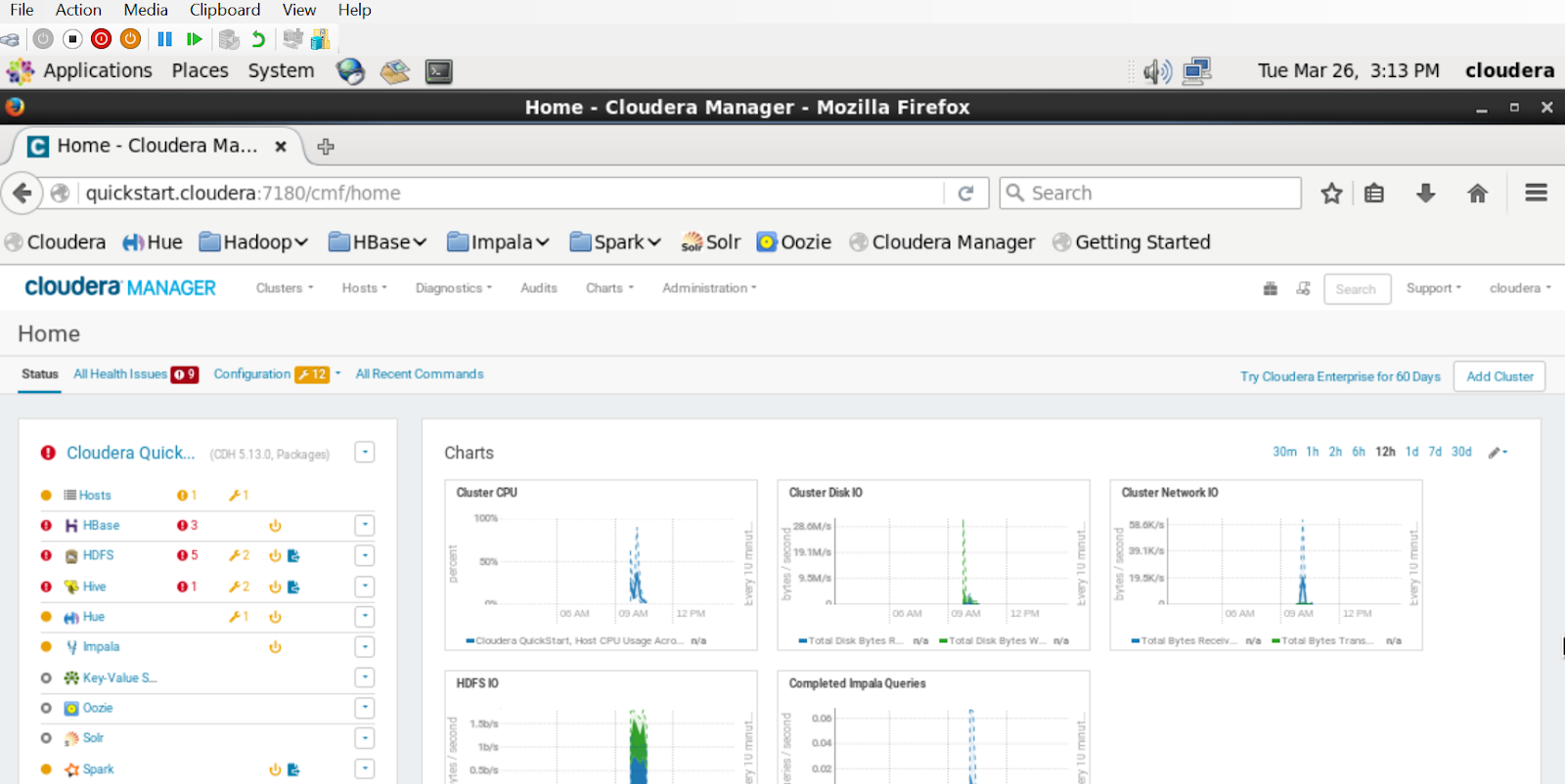
This is a big data framework after all. Let's now see if we can ingest some sample data.
- Open Hue from http://[VM IP Address]:8888
- User ID/password is cloudera/cloudera.
- Using Hue, one can create table in Impala by running this command - CREATE TABLE default.t1 (x INT, y STRING);
- Next step is to insert multiple rows using - INSERT INTO default.t1 VALUES (1, 'one'), (2, 'two'), (3, 'three');
- Finally, query the table using - SELECT * FROM default.t1;

Benefits
From a development perspective, here are the advantages of virtualization -
- It saves the time of having to setup multiple components for a complex software.
- A VM can be setup in minutes to run any kind of application
- If, for some reason, the VM is corrupted, it can always be re-installed.
- Each developer in the team can have their own full fledged Cloudera instance for developing, testing, troubleshooting etc.


