
- 전체
- 보안뉴스
- 제로데이취약점
- 해킹프로그래밍
- 웹해킹
- 해킹기법
- 정보보호
- 정보보안기사 - 국가기술자격
- 악성코드분석_리버싱
- 시큐어코딩_개발보안진단원
- CISSP
- CISA
- 모의해킹_penetration-test
- deepweb / tor network
- Kali Linux
deepweb / tor network [deepweb / tor network] How to install Tor and create Tor hidden service on Windows
2024.03.26 15:58
[deepweb / tor network] How to install Tor and create Tor hidden service on Windows
Where to download Tor for Windows
If you need a browser with Tor, that is, if you are sufficient that you can have another IP when surfing the Internet or want to bypass regional restriction, then you need Tor Browser, download it from the official site. There already is everything you need for anonymous surfing in the web and everything is already set up.
If you want to install Tor as a service on Windows, then you need Expert Bundle. It can be downloaded from the same page of the official website. Next we will talk only about the Expert Bundle.
From the downloaded archive (in my case, the file is called tor-win32-0.3.3.7.zip), unpack the Tor folder to the root of drive C.
How to launch Tor on Windows
Tor can be started once, or set as NT service, which will be launched each time your computer booting. Consider a one-time launch. Open the Windows command prompt, to do this, press Win+x and select "Windows PowerShell (Administrator)" there.
In the window that opens, type
|
1
|
C:\Tor\tor.exe |
Wait until Tor completes his business:
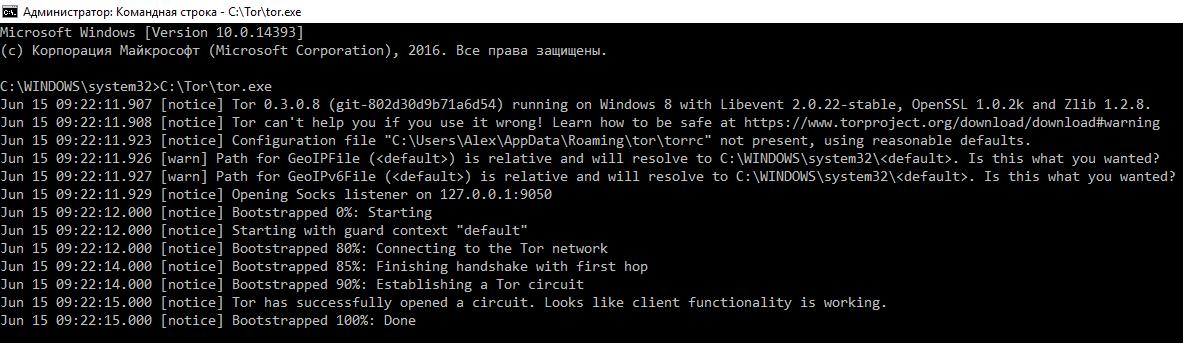
Tor already works! But it will end if you close the window. For Tor to work constantly, it needs to be installed as a service.
Installing Tor as a Windows Service
To install the service, simply run the command:
|
1
|
C:\Tor\tor.exe --service install |
You can adjust the service using various Tor command-line options.
We need a configuration file, so create it in the C:\Tor\, directory, this file should be named torrc:
|
1
|
echo( > C:\Tor\torrc |
To check if the service with the settings file starts (it does not contain errors), you can use this command:
|
1
|
C:\Tor\tor.exe -f "C:\Tor\torrc" |
Now install the Tor service, which will read the settings from the C:\Tor\torrc file:
|
1
|
C:\Tor\tor.exe --service install -options -f "C:\Tor\torrc" |
Remember that you must specify options after the -options flag, otherwise they will be ignored.
To start and stop the service, use the following commands:
|
1
2
|
C:\Tor\tor.exe --service startC:\Tor\tor.exe --service stop |
To remove the service:
|
1
2
|
C:\Tor\tor.exe --service stopC:\Tor\tor.exe --service remove |
Note that you must first stop the service and then delete it.
By default, the Tor service listens on port 9050, so you can check whether it is started by a command that shows if port 9050 is listened:
|
1
|
netstat -aon | findstr ":9050" |
You can also use the following command:
|
1
2
|
cmdfor /f "tokens=1,2,3,4,5*" %i in ('netstat -aon ^| findstr ":9050" ^| findstr /i listening') do echo %j %l & @tasklist | findstr %m |
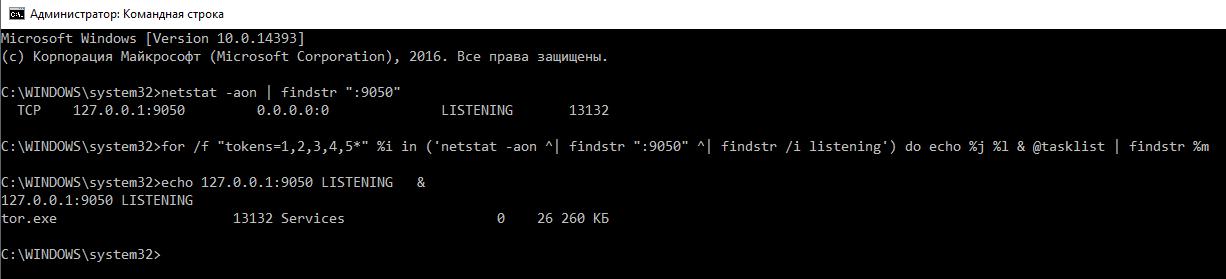
Now, when the Tor service is installed and running, several recipes will be shown, how it can be used.
Using Tor in Windows to download files from blocked sites
Some sites with media content allow you to view it, but do not allow you to download files to your hard drive. An example of such a YouTube site. I consider YouTube just as an example of a web site, which can be censored in some regions. So image YouTube is blocked, so you can visit it using Tor Browser, but you cannot download video because your download program does not use Tor and, so, cannot access it.
I will show you the example of JDownloader (free, open source, supports a huge number of web sites and file sharing sources, cross-platform), but this instruction is suitable for any such programs if they support SOCKS5 or SOCKS4. JDownloader site, direct link to download the JDownloader installer.
In JDownloader, go to Settings, then the Connection Manager tab, and click the Add button. Replace the type with Socks5, in the Host/Port field, type localhost and 9050:
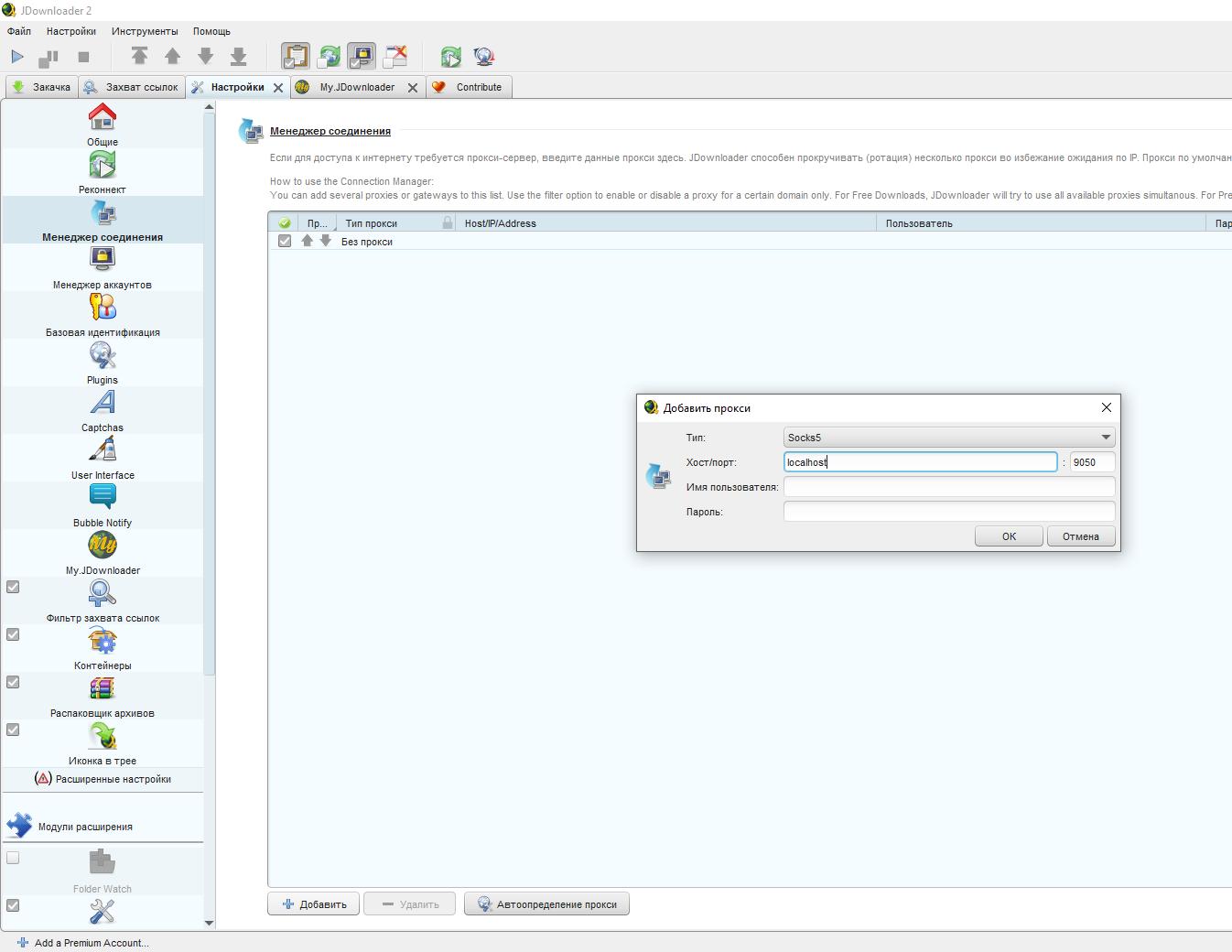
Click OK to save the settings and close the window.
JDownloader rotates the connection. Therefore, if you download from a blocked site, then uncheck the box Without proxy:

Now you can download from blocked sites!
How to create Tor hidden service in Windows
The essence of the hidden service is that on your computer (it can be a rented VPS or your home computer) running a web server. Your computer must have access to the Tor network. Through this network, anyone who has the address of your hidden service (domain name *.onion) can visit your website, which serves your web server. You do not need to worry about buying a domain name (it's free), about DNS, public IP, etc. - Tor network will take care of this. To start a hidden service, you only need two things:
- running web server
- connection to the Tor network
By the way, you might be interested in the article ‘How to get a beautiful domain name for the Tor hidden service.’
We need to have a working web server. To configure it, refer to the guide ‘How to install web server on Windows 10 (Apache 2.4, PHP 7, MySQL 8.0 and phpMyAdmin)’.
Now that the web server is installed and its functionality is verified, we will begin to configure the hidden service in Windows.
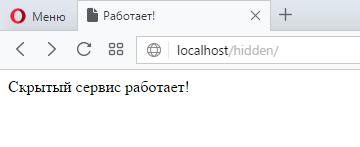
Your site for the hidden service should already work and open with localhost. I will create a simple web page. In the folder C:\Server\data\htdocs\ I create a new hidden folder, and in it the index.htm file with the following contents:
|
1
2
3
4
5
6
7
8
9
10
11
12
|
<!DOCTYPE html><html> <head> <title>Работает!</title> <meta charset="UTF-8"> </head> <body> <div> Скрытый сервис работает! </div> </body></html> |
Therefore, this file is accessible from the local server at http://localhost/hidden/:
Now open the Apache configuration file C:\Server\bin\Apache24\conf\httpd.conf and add it:
|
1
2
3
4
5
6
7
8
9
10
11
12
13
14
15
16
|
Listen 127.0.0.1:9475 <VirtualHost 127.0.0.1:9475> DocumentRoot "C:/Server/data/htdocs/hidden/" ServerName localhost ServerAdmin you@example.com <Directory /> Options +Indexes +FollowSymLinks +ExecCGI AllowOverride All Order deny,allow Allow from allRequire all granted</Directory> </VirtualHost> |
Basically, you just need to edit in it only the line DocumentRoot "C:/Server/data/htdocs/hidden/" - it shows the path to your website, which will be the Tor hidden service.
Restart the Apache web server for the changes to take effect:
|
1
|
c:\Server\bin\Apache24\bin\httpd.exe -k restart |
Now your site for the hidden service should be accessible from the local computer at http://localhost:9475
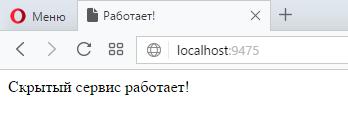
Now go to the Tor configuration.
Open any C:\Tor\torrc file with any text editor and copy into it:
|
1
2
|
HiddenServiceDir "C:/Tor/hidden_service/"HiddenServicePort 80 127.0.0.1:9475 |
Notice how we wrote C:\Tor\hidden_service\ - instead of \ we use /. You also need to use quotation marks.


Restart the Tor service:
|
1
2
|
C:\Tor\tor.exe --service stopC:\Tor\tor.exe --service start |
The hidden_service folder will be automatically created and two files in it. In the file C:\Tor\hidden_service\hostname you will see the domain name for your hidden service:
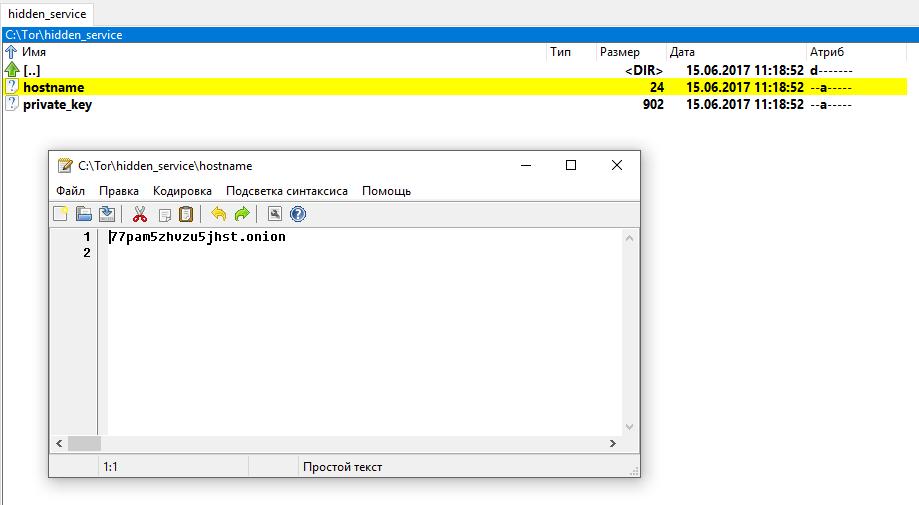
In my case it is 77pam5zhvzu5jhst.onion, we try to open it in the Tor Browser:
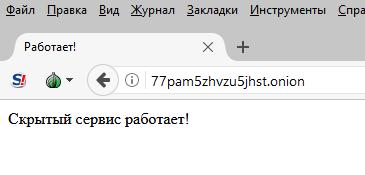
It may take several minutes for the hidden service to open in the browser.
If you generated your own name for the Tor hidden service, replace the contents of the hostname and private_key file, and then restart the Tor service for the changes to take effect:
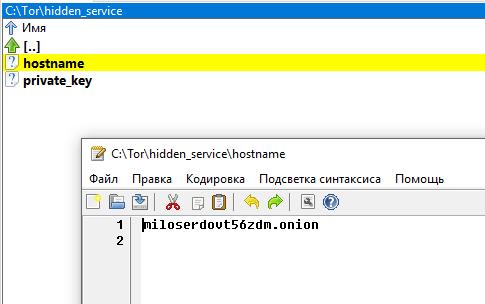
Using Tor browsers in Windows
If you want to surf anonymously on the Internet, we recommend using the Tor browser. It not only redirects traffic through the Tor network, but also has a number of patches and settings that promote privacy.
Nevertheless, if you want to access the Internet through the Tor network using browsers Google Chrome, Firefox, Opera or Internet Explorer, then it is also possible.
The Tor service must be installed (or started as shown at the beginning of the article).
Browsers Google Chrome, Opera and Internet Explorer use the same settings. Therefore, the changes will be applied immediately for all three browsers. In any of them, go to the Proxy settings, the following window will open:
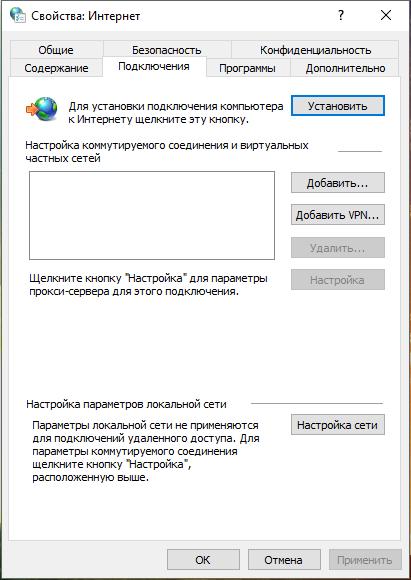
In the window, click Network Setup. In the new window that opens, check the box ‘Use proxy server for local connections…’:
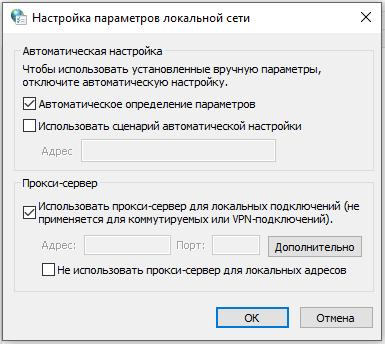
The "Advanced" button becomes active, press it. In the Socks field, type 127.0.0.1, and in the Port field, type 9050:
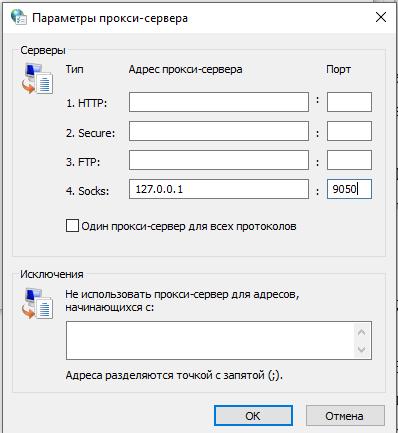
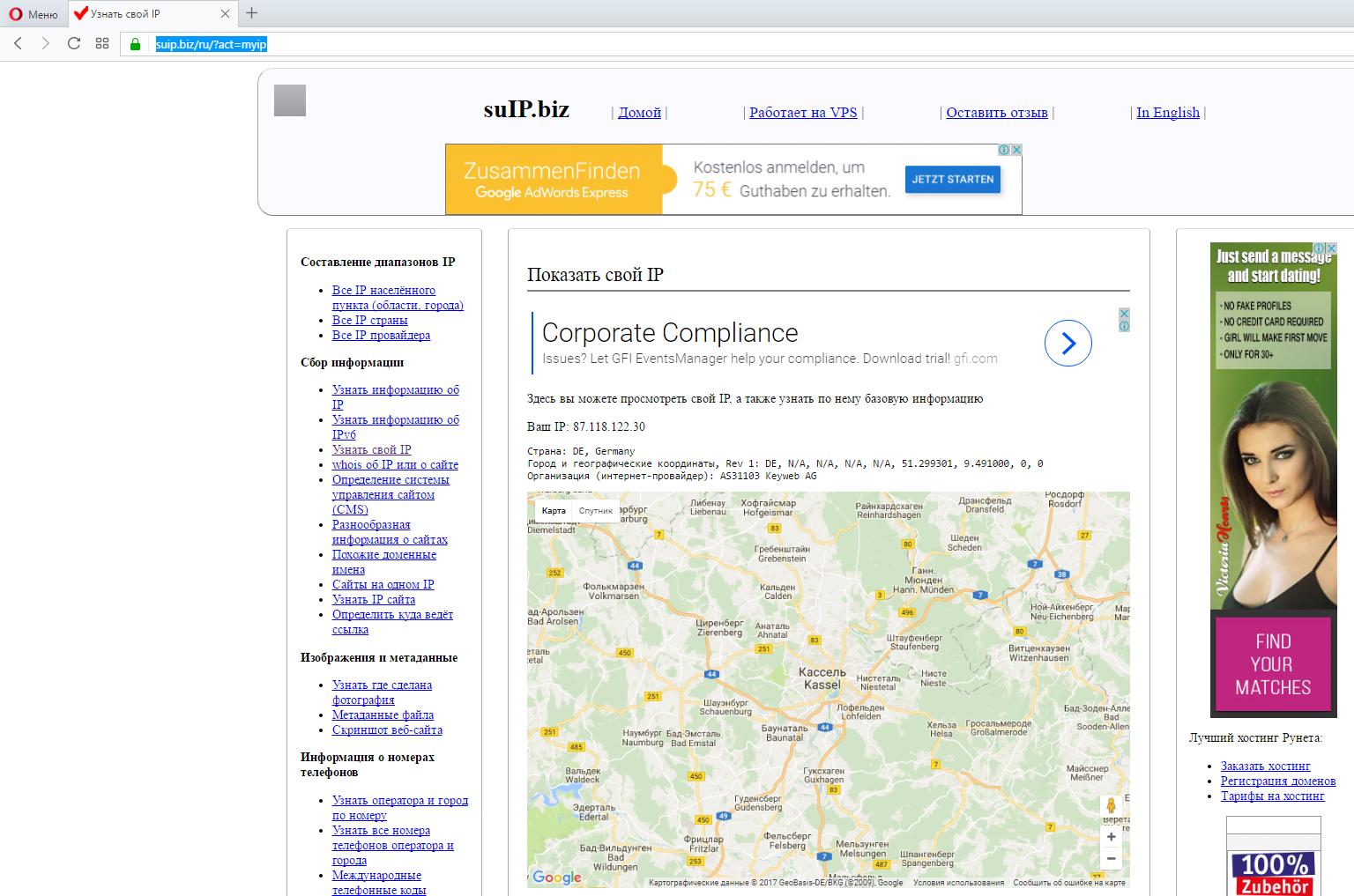
Click OK in all windows to save the settings. The current IP can, for example, be checked on the page https://suip.biz/?act=myip:
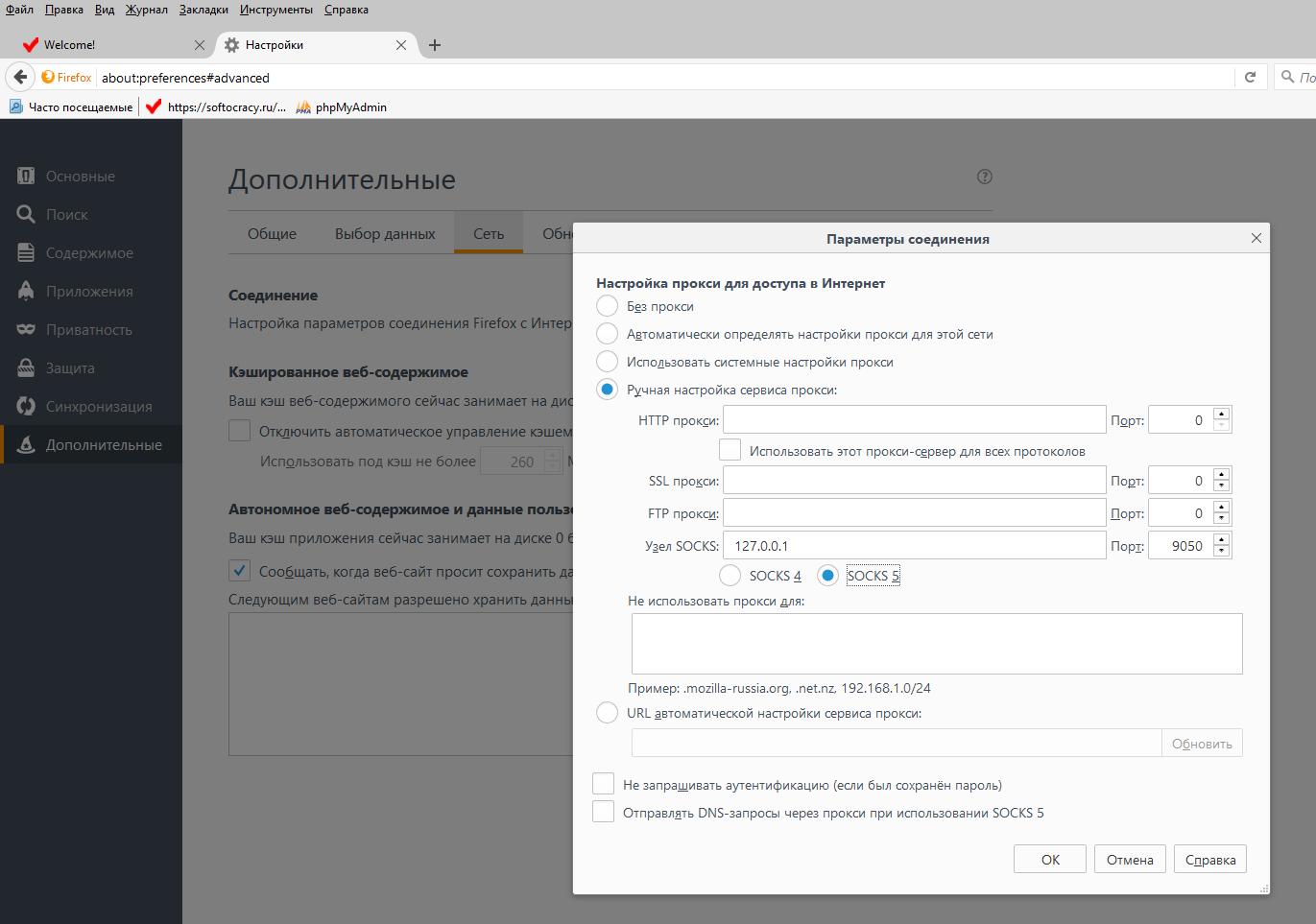
To change the settings in Firefox go to Settings -> Advanced -> Network -> Configure. In the window that appears, select the Manual proxy server setup switch. In the SOCKS Node field, enter 127.0.0.1 and the Port field is 9050. Put the switch on SOCKS 5. Click OK to save the settings.
System-wide proxy settings in Windows
Windows has a WinHTTP proxy program. It allows you to set proxy settings for the system as a whole. Logically, it is expected that all applications should use system-wide settings, but this does not happen. Windows uses WinHTTP for certain services, for example, to download Windows updates and perform checks on revoked certificates. Nevertheless, perhaps you will find an application for this.
Using the command
|
1
|
netsh winhttp import proxy source=ie |
you can import settings from Internet Explorer.
And the following commands you can view/reset the use of system-wide settings:
|
1
2
|
netsh winhttp show proxynetsh winhttp reset proxy |
Accessing the Tor from a PHP program
If you installed the Tor service and you have the web server to set up the hidden service, you can also receive data from the Tor network in your PHP program (using cURL). Example of working code:
|
1
2
3
4
5
6
7
8
9
10
11
12
13
14
|
<?php$url = 'http://hacktoolseqoqaqn.onion/';$ch = curl_init();curl_setopt($ch, CURLOPT_URL, $url);curl_setopt($ch, CURLOPT_RETURNTRANSFER, true);curl_setopt($ch, CURLOPT_PROXY, "http://127.0.0.1:9050/");curl_setopt($ch, CURLOPT_PROXYTYPE, CURLPROXY_SOCKS5);curl_setopt($ch, CURLOPT_PROXYTYPE, 7);$output = curl_exec($ch);$curl_error = curl_error($ch);curl_close($ch); print_r($output);print_r($curl_error); |
Continue reading: ‘How to set up proxy with Tor in Windows’.
Related articles:
- How to set up Tor hidden service in Debian (Kali Linux, Linux Mint, Ubuntu) (96.4%)
- How to get a custom domain name for Tor hidden service (94.1%)
- Tor tips and usage examples (59.7%)
- Free easy way to hide IP in Linux (58.6%)
- How to install and run Tor Browser on Kali Linux (58.6%)
- How to see and change timestamps in Linux. How to perform timestamps-based searching (RANDOM - 51.2%)
[출처] https://miloserdov.org/?p=1839
광고 클릭에서 발생하는 수익금은 모두 웹사이트 서버의 유지 및 관리, 그리고 기술 콘텐츠 향상을 위해 쓰여집니다.
