
- 전체
- HTML
- Web Design (웹디자인)
- XE 응용 개발
- wordpress plugin dev
- Javascript & JavaScript Application
- MEAN Stack : full stack javascript
- angular js & ionic framework
- bootstrap
- WebGL, Three.js and Babylon.js
- restful api design
- mobile web
- node.js 응용
- Cloud Service 응용
- 웹 어셈블리 개발 [WASM, WebAssembly]
- 마이크로서비스, MSA (microservice architecture)
- WebGL / WebGPU
- next.js 개발
- micro frontend (마이크로프론트앤드)
- 전자상거래/쇼핑몰
- 서버 클라우드 (aws, azure, google)
Importing a Modeled Mesh From Blender to Three.js
It has been a very long time since the last Three.js rotating cube post. Better late than never, right? Here is the next part about the import and animation of a more complex mesh created in a modeling software. Yet, as we are not designer (and a fortiori, not 3D designer), we will focus on a not too complicated mesh: the marmelab logo.
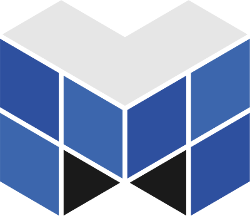
Modeling Marmelab Logo with Blender
We are going to use Blender, a free and open-source 3D modeler. First, let’s create the mesh. Fortunately, marmelab logo is quite simple: it is composed of five cubes glued together to form the letter M. Here is a video describing this modeling:
Export a Blender Mesh in JSON for Three.js
Now that we got our mesh (you can download it here), let’s take a look on how to export it for Three.js. Three.js expects to get a Mesh in JSON format. Fortunately, the community has already provided a Blender to Three.js exporter. So, download it and put the io_threefolder under your ~/.config/blender/2.69/scripts/addons/ folder or its equivalent depending your operating system (check the README for more informations).
Then, open the File > User preferences and go to the Addons tab. Search for Three.js and enable the found plug-in. Now, you should be able to see a File > Export > Three.js option. On the opened tab, ensure that Face Materials checkbox is checked. Otherwise, you won’t have materials, and Three.js is going to refuse to import your mesh.
Once saved, your file should look like the following:
{
    "metadata": {
        "uvs": 0,
        "type": "Geometry",
        "normals": 31,
        "generator": "io_three",
        "materials": 6,
        "version": 3,
        "vertices": 200,
        "faces": 198
    },
    "vertices":[/* ... */],
    "uvs": [],
    "name": "CubeGeometry",
    "materials": [/* ... */],
    "normals":[/* ... */],
    "faces":[/* ... */]
}
All required data is here. The most important are vertices, faces, normals (to compute lighting correctly), and materials.
Importing Mesh From Blender in Three.js
Now we got our mesh into an understandable format, let’s import it in Three.js. Based on the last tutorial code, we just have to replace our initCube function by an initMesh one:
var mesh = null;
function initMesh() {
    var loader = new THREE.JSONLoader();
    loader.load('./marmelab-logo.json', function(geometry) {
        mesh = new THREE.Mesh(geometry);
        scene.add(mesh);
    });
}
Note that as you load a file dynamically, you can’t open your file directly with a browser. You have to use a Web server. On Linux, you can use for instance the Node.js http-server package.
npm install -g http-server
http-server .
Rotating a Mesh
Do not forget to modify the rotateCube function:
function rotateMesh() {
    if (!mesh) {
        return;
    }

    mesh.rotation.x -= SPEED * 2;
    mesh.rotation.y -= SPEED;
    mesh.rotation.z -= SPEED * 3;
}
As you can see, working with a mesh is exactly the same as working with a primitive. We just check that our mesh is loaded to avoid a warning. Indeed, the loading function is an asynchronous one and then, the rendering loop may start before our model is in memory. A cleaner way to deal with it would be to start rendering only when model is loaded, but let’s keep it simple for this tutorial.
If your refresh your browser, you should now see a wireframed rotating marmelab logo. Yet, if you look deeper, you may see a graphical glitch:
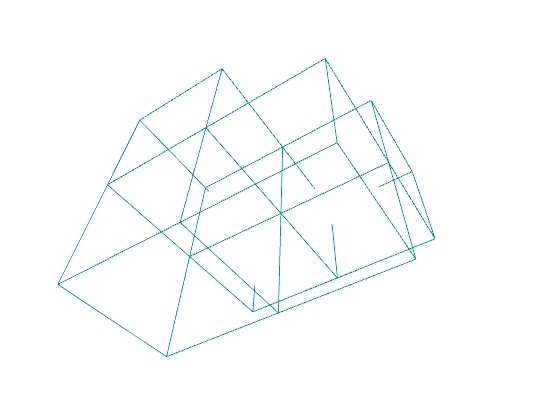
It seems some edges are broken. No mesh has been hurt during this animation, I swear. It is just a concrete example of the zFardistance from this previous post schema:
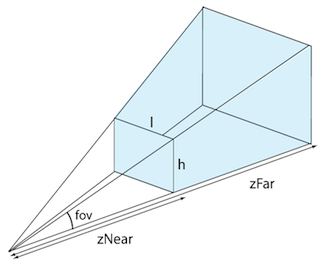


The value provided to the camera is not enough. So, we got two solutions: either increase the camera maximum length vision, or reduce the size of our mesh. Let choose the latter. Modify the initMesh method adding this line in the callback:
mesh.scale.x = mesh.scale.y = mesh.scale.z = 0.75;
This way, we reduce the size of our rotation logo by 25%. The glitch should have disappeared.
Changing Rotation Center Position
Rotation center is currently located at the bottom of one of the M branch. It would be far better if it occurred at the common point of all cubes. To do so, we have to translate the rotation origin, using transformation matrices. Sounds complicated? Fortunately, Three.js simplifies a lot our work:
loader.load('./marmelab-logo.json', function(geometry) {
    mesh = new THREE.Mesh(geometry);
    mesh.scale.x = mesh.scale.y = mesh.scale.z = 0.75;
    mesh.translation = THREE.GeometryUtils.center(geometry);
    scene.add(mesh);
});
All the magic happens on the mesh.translation line. We retrieve the center of our mesh, thanks to the GeometryUtils.center, and then translate it accordingly to make it rotate on its center.
Loading Materials
Our Blender file contains several materials in order to colorize different faces. So, let’s add these materials to our mesh to get rid of this wireframe display. Materials are also loaded through the loader.load method. You just have to add a second argument materials to the callback function:
loader.load('./marmelab-logo.json', function(geometry, materials) {
    mesh = new THREE.Mesh(geometry, new THREE.MeshFaceMaterial(materials));
    // ...
});
Do not forget to pass materials to the THREE.MeshFaceMaterial function, otherwise you would get the following error:
Cannot read property ‘uniforms’ of undefined
Let There Be Light
We don’t have wireframes anymore, but our textures are fully black. This is due to a lack of light on our scene.
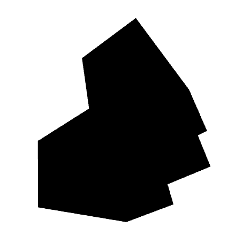
So, let’s create a new initLights method and let’s call it in our init function:
function initLights() {
    var light = new THREE.AmbientLight(0xffffff);
    scene.add(light);
}
We added here a white AmbientLight. This kind of light is applied everywhere, so you don’t have to worry about the light position. As we are going to see lights in more details in another post, I won’t cover it for the moment.
Woohoo! We now have a nice looking marmelab logo. As usual, demonstration and source code are both available on GitHub.
[출처] https://www.jonathan-petitcolas.com/2015/07/27/importing-blender-modelized-mesh-in-threejs.html
광고 클릭에서 발생하는 수익금은 모두 웹사이트 서버의 유지 및 관리, 그리고 기술 콘텐츠 향상을 위해 쓰여집니다.
댓글 0
| 번호 | 제목 | 글쓴이 | 날짜 | 조회 수 |
|---|---|---|---|---|
| 13 | [Next.js 개발] pm2 로 Next.js 실행하기 | 졸리운_곰 | 2025.07.01 | 480 |
| 12 | [Next.js 개발] NextAuth.js 를 이용한 자체 로그인 구현 | 졸리운_곰 | 2024.03.09 | 560 |
| 11 |
[Next.js 개발] Using Next.js Version 13
 | 졸리운_곰 | 2024.03.09 | 409 |
| 10 |
[Next.js 개발] Common Errors in Next.js and How to Resolve Them
| 졸리운_곰 | 2024.03.09 | 468 |
| 9 | [Next.js 개발] [Javascript] 현재 날짜, 시간 구하기 | 졸리운_곰 | 2024.03.09 | 431 |
| 8 |
[Next.js 개발] Using Next.js Version 13 : Next.js 버전 13 사용
| 졸리운_곰 | 2024.03.07 | 499 |
| 7 |
[Next.js 개발] [React] useEffect에서 async/await
| 졸리운_곰 | 2024.03.06 | 362 |
| 6 |
[next.js 개발] How to use fetch API in Next.js?
| 졸리운_곰 | 2024.03.05 | 368 |
| 5 | [next.js 개발] Next.js14에 Mysql연결하기 | 졸리운_곰 | 2024.03.05 | 458 |
| 4 |
[next.js 개발] How To Connect MySQL And Auth To A Next.js App
| 졸리운_곰 | 2024.03.05 | 323 |
| 3 |
[next.js 개발] Next.js 소개와 14 버전 변경사항 – React 인기 라이브러리
| 졸리운_곰 | 2024.03.05 | 523 |
| 2 | [next.js 개발] next.js API 호출시 - 수신부따로 호출하고 await 붙일것 | 졸리운_곰 | 2024.03.05 | 555 |
| 1 | [next.js 개발] [Next.js] Fetch POST body에 json 형태로 데이터 주고받기 (json형 / object형 차이) | 졸리운_곰 | 2024.03.05 | 457 |