
Spiderman, Where are You Coming From Spiderman?
Sometimes you just need the right tools to help you do what you want. This is especially true when the tool you are limited to has a bunch of restrictions. I ran into this particular problem the other day when I wanted to "spider" a website to find out all its possible URLs being served, including the URLs that are ignored by the usual "robots.txt" file sitting on the web server.I actually had to find a way around the "robots.txt" file for a web site that was blocking web crawlers from finding most of the URLs that were available. Imagine a spider that is crawing through a tunnel, looking for all the tasty bugs - and there is a giant boulder in the way providing the biggest obstacle possible to getting those bugs it wants to feed on.
My requirements for a spider alternative (if possible) were:
- free
- no lengthy configuration
- a GUI
- a way of ignoring the "robots.txt" file's instructions
- the search results in a spreadsheet file
- able to run on Windows (and Linux too, if possible)
OpenWebSpider is a neat application written in node.js, which crawls a website and saves its results to a database that you nominate. The project seems to be reasonably active and at the time of writing is hosted on SourceForge. To get the application going in Windows, first you'll need to do a few things.
Install WAMP Server
OK, so the database I wanted to store my results in was MySQL. One of the best ways to get this (and other nice bits) in Windows is to install the handy WAMP server package. (However, the providers do warn you that you might first need a Visual Studio C++ 2012 redistributable package installed.)One you do get WAMP Server installed, you'll have a nice new "W" icon in your system tray. Click on it, then click Start All Services.

You can view the MySQL database in the phpMyAdmin interface, just to be nice and friendly. In your browser then, go to:
http://localhost/phpmyadmin
Note: if you have any troubles with phpMyAdmin, you might have to edit its config file, usually in this location:
C:\wamp\apps\phpmyadmin4.x\config.inc.php
In phpMyAdmin, create a database to store your spidering results (I've named my database "ows"). Also create a user for the database.
Install node.js
Node.js is one of the most wonderful Javascript frameworks out there, and it's what OpenWebSpider is written with. So go to the node.js project site, download the installer and run it. Check that node.js is working OK by opening a command shell window and typing the word "node".
Get OpenWebSpider and Create the Database's Schema
Download the OWS zip file from Sourceforge. Unzip the file. Inside the project folder, you'll see a number of files. Double-click the "openwebspider.bat" file to launch the application in a little shell window.

Then, as the readme.txt instruction file tells you:
- Open a web-browser at http://127.0.0.1:9999/
- Go in the third tab (Database) and configure your settings
- Verify that openwebspider correctly connects to your server by clicking the "Verify" button
- "Save" your configuration
- Click "Create DB"; this will create all tables needed by OpenWebSpider

Now, check your database's new tables in phpMyAdmin:

Start Spidering!
Go to the OWS browser view, ie. at http://127.0.0.1:9999/. Click on the Worker tab and alter any settings you might thing useful. Enter the URL of the site you want to crawl in the URL box (and make sure "http://www" is in front if needed). Then hit the Go! button.
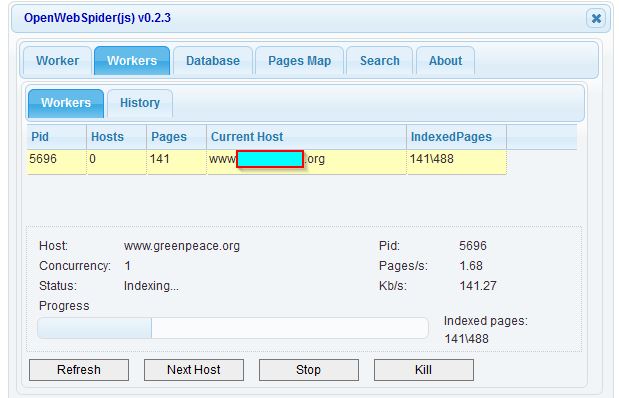
View Your Results
In phpMyAdmin, click on the pages table and you should automatically see a view of the crawling results. You might not need all the columns you'll see, in fact my usual SQL query to run is just something like:select hostname, page, title from pages where hostname = 'www.website.com';

And of course, anyone with half a brain knows you can export data from phpMyAdmin as a CSV file. Then you can view your data by importing the CSV file into a spreadsheet application.

Ignore Those Pesky Robots
Please note, the next instruction is for the version of OpenWebSpider from October 2015. It probably is outdated for the latest version now.One of the requirements was that we could bypass the "robots.txt" file, which good web crawlers by default must follow. What you'll need to do is close OpenWebSpider, and just edit one source code file. Find this file and open it up in a text editor: openwebspider\src\_worker\_indexerMixin.js.
It's a Javascript file, so all you need to do is comment out these lines (with // symbols):
// if (!canFetchPage || that.stopSignal === true)
// {
// if (!canFetchPage)
// {
// msg += "\n\t\t blocked by robots.txt!";
// }
// else
// {
// msg += "\n\t\t stop signal!";
// }
// logger.log("index::url", msg);
// callback();
// return;
// }
Re-save the file. Then launch OWS again, and try another search. You'll usually find the number of found URL results has gone up, since the crawler is now ignoring the instructions in the "robots.txt" file.
Everyday Use
It's a good idea to make a desktop shortcut for the "openwebspider.bat" file. So, if you want to use OpenWebSpider regularly, what you'll need to remember to do each time you need it is:- Start up the WAMP server in the system tray
- On the desktop, double-click the "openwebspider.bat" shortcut icon
- In a browser, go to localhost:9999 (Openwebspider) to run the worker
- In a browser, go to localhost/phpmyadmin to see your results
Happy spidering!


[출처] http://scriptsonscripts.blogspot.kr/2015/10/crawling-with-openwebspider.html
