
Configuring Spring Boot for Microsoft SQL Server
2020.01.24 18:57
Configuring Spring Boot for Microsoft SQL Server
Accessing and configuring your MS SQL Server instance is pretty simple if you're using Spring Boot. After a bit of legwork, Spring fills in the defaults for you.
Out of the box, Spring Boot is very easy to use with the H2 Database. Spring programmers typically prefer writing code against such lightweight in-memory databases, rather than on an enterprise database server such as Microsoft SQL Server or Oracle.
In-memory databases come with several restrictions making them useful only in the development stages in local environments. While in-memory databases are great to develop against, data is not persisted to disk, thus is lost when the database is shut down.
As the development progresses, you would most probably require an RDBMS to develop and test your application before deploying it to use a production database server. I have written a series of posts on integrating Spring Boot for Oracle, MySQL, MariaDB, and PostgreSQL.
Spring makes switching between RDBM’s simple. When you’re using Spring Data JPA with an ORM technology such as Hibernate, the persistence layer is nicely well decoupled. Which allows you to easily run your code against multiple databases. The level of decoupling even allows you to easily switch between an RDBMS and a NoSQL database, such as MongoDB. One of my previous post on Integrating Spring Boot for MongoDB covers that.
In this post, I will discuss Spring Boot configuration for Microsoft SQL Server.
SQL Server Configuration
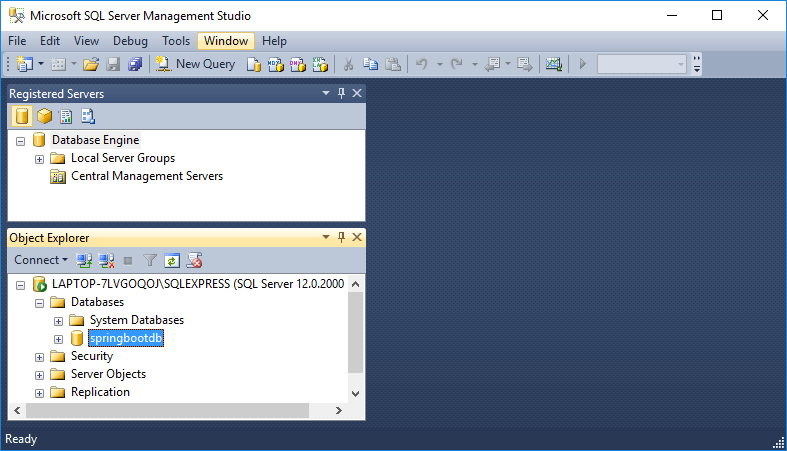
For this post, I’m using SQL Server 2014 Express installed locally on my laptop. I used SQL Server 2014 Management Studio to connect to the database server using SQL Server Authentication.

Once you are logged in, create a springbootdb database from the Object Explorer window.
A common problem that trips up many Java developers trying to connect to SQL Server is this error:
I too learned the hard way to resolve it with these steps.
- From the Start menu, open SQL Server 2014 Configuration Manager.
- Click Protocol for SQLEXPRESS under SQL Server Network Configuration on the left pane. On the right pane, right- click TCP/IP, and select Properties.
- On the TCP/IP Properties dialog box that appears, click the IP Addresses tab.
- Scroll down to locate the IPALL node. Remove any value, if present for TCP Dynamic Ports and specify 1433 for TCP Port.

- Click OK.
- Again right-click TCP/IP on the right pane, and select Enable.
- On the SQL Server Services node, right-click SQL Server (SQLEXPRESS), and select Restart.
This sets up SQL Server to be reached via JDBC code.
SQL Server Dependencies
To connect with SQL Server from Java applications, Microsoft provides a Microsoft JDBC Driver for SQL Server. However, until November 2016, Maven did not directly support the driver, as it was not open sourced. By making it open source, Microsoft finally made the driver available on the Maven Central Repository. More information can be found here.
The Maven POM file of my Spring Boot application that brings in the database driver is this.
POM.xml:
Spring Boot Properties
We need to override the H2 database properties being set by default in Spring Boot. The nice part is, Spring Boot sets default database properties only when you don’t. So, when we configure SQL Server for use, Spring Boot won’t setup the H2 database anymore.
The following data source configurations are required to configure SQL Server with Spring Boot.
Application.properties:


As we are using JPA, we need to configure Hibernate for SQL Server too. Line 7 tells Hibernate to recreate the database on startup. This is definitely not the behavior we want if this was actually a production database You can set this property to the following values: none, validate, update, create-drop.
For a production database, you probably want to use validate.
JPA Entity
In our example application, we will perform CRUD operations on a user. For that, we will write a simple JPA entity, User for our application. I have written a post to use Spring Data JPA in a Spring Boot Web application, and so won’t go into JPA here.
User.java:
JPA Repository
Spring Data JPA CRUD Repository is a feature of Spring Data JPA that I extensively use. Using it, you can just define an interface that extends CrudRepository to manage entities for most common operations, such as saving an entity, updating it, deleting it, or finding it by id. Spring Data JPA uses generics and reflection to generate the concrete implementation of the interface we define.
For our User domain class, we can define a Spring Data JPA repository as follows.
UserRepository.java:
That’s all we need to set up in Spring Boot to use SQL Server.
Let’s write some test code for this setup.
UserRepositoryTest.java:
For the test, I have used JUnit. To know more about JUnit, you can refer my series on JUnit Testing.
The result of the JUnit test is this.

As you can see, it is very easy to configure Spring Boot for SQL Server. As usual, Spring Boot will auto configure sensible defaults for you. And as needed, you can override the default Spring Boot properties for your specific application.
[출처] https://dzone.com/articles/configuring-spring-boot-for-microsoft-sql-server
광고 클릭에서 발생하는 수익금은 모두 웹사이트 서버의 유지 및 관리, 그리고 기술 콘텐츠 향상을 위해 쓰여집니다.
