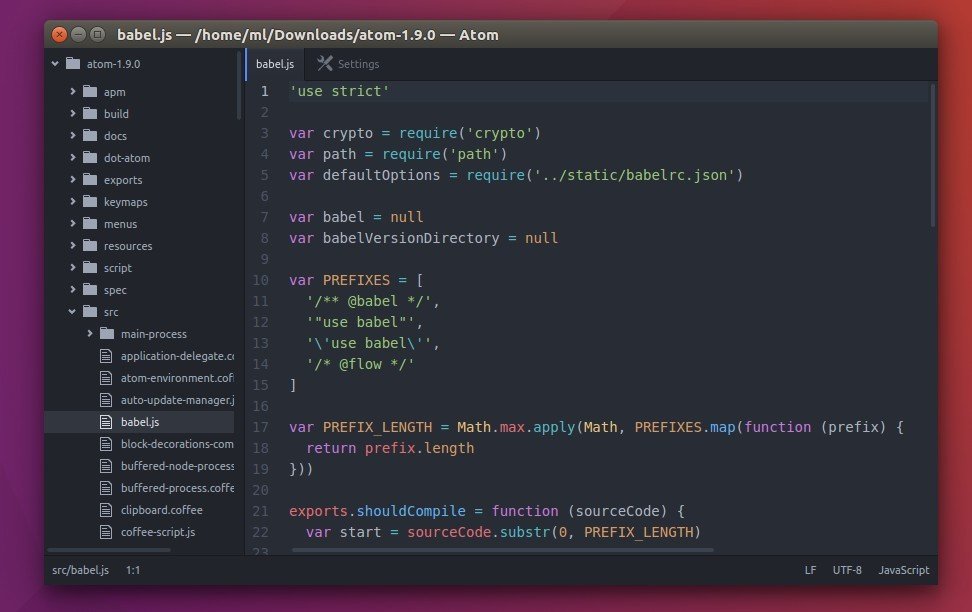
Install Atom Text Editor in Ubuntu 16.04 (both 32&64bit)

Atom Text Editor

Atom is an open-source text editor designed to be deeply customizable, but still approachable using the default configuration. It’s a “hackable text editor for the 21st century”, built on Electron.

While Atom offers only 64-bit binary packages (.deb) for Ubuntu, here’s how to install Atom in both 32-bit and 64-bit of Ubuntu 16.04, 14.04, and keep it up-to-date by receiving the software updates via Software Updater utility.

Atom text editor feature:

  • Tweak its UI with CSS and add new features with HTML or Javascript
  • Node.js integration
  • Cross-platform support: Windows, Linux, and OS X.
  • A built-in package manager
  • Smart autocompletion
  • Split Atom interface into multiple panes
  • File system browser
  • Find and replace
  • Support themes

How to install Atom in Ubuntu via PPA:

Webupd8 Team is maintaining an unofficial PPA with most recent Atom packages for all current Ubuntu releases, and derivatives. While official Linux binary is 64-bit only, the PPA supports both 32-bit and 64-bit.

1. Add PPA

Open terminal (Ctrl+Alt+T) and run the command:

sudo add-apt-repository ppa:webupd8team/atom

Type in password when it prompts and hit Enter.

Atom PPA

2. Update and install Atom editor:

Update system package index and install the text editor via command:

경축! 아무것도 안하여 에스천사게임즈가 새로운 모습으로 재오픈 하였습니다.
어린이용이며, 설치가 필요없는 브라우저 게임입니다.
https://s1004games.com

sudo apt update; sudo apt install atom

install-atom-editor

Once Atom is installed and a new release is out in future, you can simply upgrade the editor by running regular system updates via Software Updater utility.

3. (Optional) To remove Atom text editor

To remove the software, use Synaptic Package Manager or just run apt command with remove flag:

sudo apt remove --purge atom

And the PPA can be remove via Software & Updates utility under Other Software tab.


[출처] http://tipsonubuntu.com/2016/08/05/install-atom-text-editor-ubuntu-16-04/


본 웹사이트는 광고를 포함하고 있습니다.
광고 클릭에서 발생하는 수익금은 모두 웹사이트 서버의 유지 및 관리, 그리고 기술 콘텐츠 향상을 위해 쓰여집니다.
번호 제목 글쓴이 날짜 조회 수
28 [Linux programming][turbo c] The libXbgi Library file 졸리운_곰 2023.02.05 254
27 [unix][linux][compiler] Yacc와 Lex 시작하기 file 졸리운_곰 2021.09.08 261
26 [Visual Studio 2019] Visual Studio로 Linux 원격 개발하기(Ubuntu 설치부터 SSH 서버접속까지) file 졸리운_곰 2021.08.29 264
25 [unix][emacs] 이맥스와 함께하는 개발환경 . emacs 튜토리얼 file 졸리운_곰 2021.08.18 319
24 [Linux][C/C++] cmake 사용법과 활용 file 졸리운_곰 2020.11.08 553
23 [CMake] Linux C/C++ cmake 시작하기 졸리운_곰 2020.11.08 398
22 [C++] CMake Build System file 졸리운_곰 2020.11.08 328
21 Windows 10에 한국어 입출력이 가능한 리눅스 데스크톱 설치하기 file 졸리운_곰 2020.06.29 290
20 wxwidgets 과 codeblock 설치(리눅스) 졸리운_곰 2019.12.25 229
19 ubuntu 18.04.2 LTS 개발환경 세팅 졸리운_곰 2019.12.25 224
18 Ubuntu 16.04 개발환경 세팅하기! 졸리운_곰 2017.03.21 360
17 tcl/tk 자료 secret 졸리운_곰 2017.02.23 0
16 CentOS xrdp 설정 (원격데스크탑) 졸리운_곰 2017.02.01 453
15 Five lightweight Linux desktop worlds for extreme open-sourcers file 졸리운_곰 2016.05.12 1023
14 Logging every shell command 졸리운_곰 2016.05.11 581
13 How to keep a detailed audit trail of what’s being done on your Linux systems file 졸리운_곰 2016.05.11 467
12 Docker의 소개와 간단한 사용법 file 졸리운_곰 2015.11.24 804
11 Make Self-Extracting Archives with makeself.sh 졸리운_곰 2015.11.07 366
10 리눅스 간단 배포 Linux simple deploy 제작 : make self file 졸리운_곰 2015.11.07 352
9 Joinc: Linux 커널에서의 디바이스 드라이버 작성 졸리운_곰 2015.06.16 837
대표 김성준 주소 : 경기 용인 분당수지 U타워 등록번호 : 142-07-27414
통신판매업 신고 : 제2012-용인수지-0185호 출판업 신고 : 수지구청 제 123호 개인정보보호최고책임자 : 김성준 sjkim70@stechstar.com
대표전화 : 010-4589-2193 [fax] 02-6280-1294 COPYRIGHT(C) stechstar.com ALL RIGHTS RESERVED