Install Atom Text Editor in Ubuntu 16.04 (both 32&64bit)

Atom Text Editor

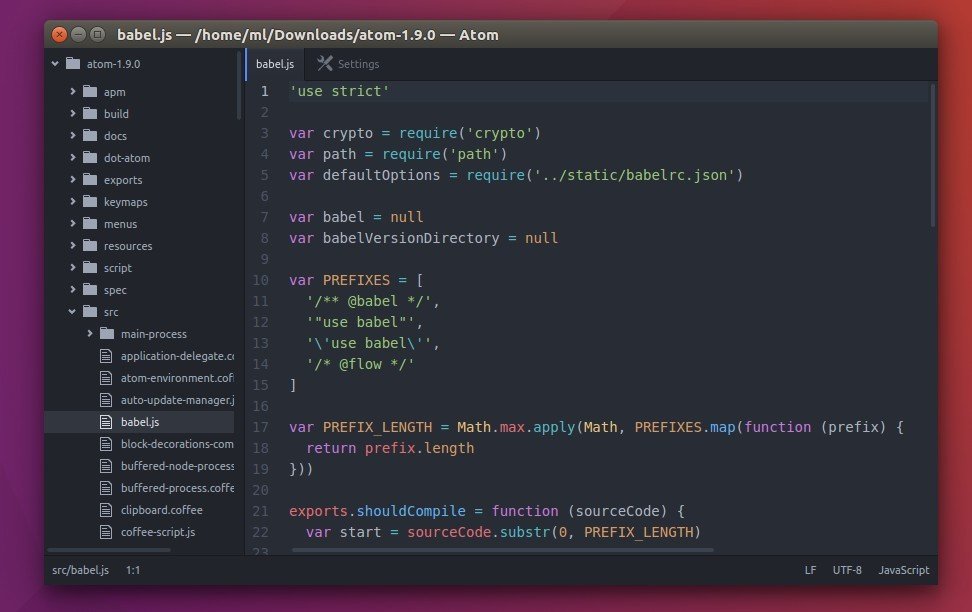
Atom is an open-source text editor designed to be deeply customizable, but still approachable using the default configuration. It’s a “hackable text editor for the 21st century”, built on Electron.

While Atom offers only 64-bit binary packages (.deb) for Ubuntu, here’s how to install Atom in both 32-bit and 64-bit of Ubuntu 16.04, 14.04, and keep it up-to-date by receiving the software updates via Software Updater utility.

Atom text editor feature:

  • Tweak its UI with CSS and add new features with HTML or Javascript
  • Node.js integration
  • Cross-platform support: Windows, Linux, and OS X.
  • A built-in package manager
  • Smart autocompletion
  • Split Atom interface into multiple panes
  • File system browser
  • Find and replace
  • Support themes

How to install Atom in Ubuntu via PPA:

Webupd8 Team is maintaining an unofficial PPA with most recent Atom packages for all current Ubuntu releases, and derivatives. While official Linux binary is 64-bit only, the PPA supports both 32-bit and 64-bit.

1. Add PPA

Open terminal (Ctrl+Alt+T) and run the command:

sudo add-apt-repository ppa:webupd8team/atom

Type in password when it prompts and hit Enter.

Atom PPA

2. Update and install Atom editor:

Update system package index and install the text editor via command:

경축! 아무것도 안하여 에스천사게임즈가 새로운 모습으로 재오픈 하였습니다.
어린이용이며, 설치가 필요없는 브라우저 게임입니다.
https://s1004games.com

sudo apt update; sudo apt install atom

install-atom-editor

Once Atom is installed and a new release is out in future, you can simply upgrade the editor by running regular system updates via Software Updater utility.

3. (Optional) To remove Atom text editor

To remove the software, use Synaptic Package Manager or just run apt command with remove flag:

sudo apt remove --purge atom

And the PPA can be remove via Software & Updates utility under Other Software tab.


[출처] http://tipsonubuntu.com/2016/08/05/install-atom-text-editor-ubuntu-16-04/


본 웹사이트는 광고를 포함하고 있습니다.
광고 클릭에서 발생하는 수익금은 모두 웹사이트 서버의 유지 및 관리, 그리고 기술 콘텐츠 향상을 위해 쓰여집니다.
번호 제목 글쓴이 날짜 조회 수
114 Windows 에 Caffe 설치하기 (๑•‿•๑) 졸리운_곰 2018.02.21 306
113 Windows에서 Caffe 예제 돌리기 : MNIST(1) (๑•‿•๑) file 졸리운_곰 2018.02.21 356
112 Caffe 구성 요소들 알아보기: blobs, nets, layer, solver, prototxt ๑•‿•๑ file 졸리운_곰 2018.02.21 569
111 Windows에서 Caffe 첫 컴파일 해보기 with Visual Studio 2013(๑•‿•๑ file 졸리운_곰 2018.02.21 313
110 윈도우10(Windows 10) / Caffe / CUDA / cuDNN / Python 설치 file 졸리운_곰 2018.02.21 350
109 [Caffe] windows 환경에서 caffe를 설치하자 (161102 기준) 졸리운_곰 2018.02.21 269
108 [리눅스 GUI 하드디스크 상태 모니터링 툴] GSmartControl - A GUI Tool to Check HDD/SSD Health on Linux file 졸리운_곰 2018.01.16 346
107 CONREC : A Contouring Subroutine 등고선 그리기 file 졸리운_곰 2018.01.11 638
106 ubuntu xfce4 rdp에서 MS Code나 Atom 에디터가 안뜰때 졸리운_곰 2017.10.14 251
» Install Atom Text Editor in Ubuntu 16.04 (both 32&64bit) file 졸리운_곰 2017.10.14 305
104 우분투 서버 윈도우 원격접속(rdp) 설정 졸리운_곰 2017.10.14 431
103 우분투 서버 한글 설정 및 한글폰트 설치 졸리운_곰 2017.10.14 458
102 왼손 / 오른손 좌표계 비교: Left- vs. Right-handed coordinate systems file 졸리운_곰 2017.09.24 432
101 3D Graphics with OpenGL file 졸리운_곰 2017.09.24 1214
100 OpenGL의 회전순서 졸리운_곰 2017.09.24 294
99 통일 D3D 및 OpenGL 좌표 시스템 file 졸리운_곰 2017.09.24 337
98 우분투(Ubuntu)에서 putty로 ssh 원격 접속 실패 해결 방법 file 졸리운_곰 2017.08.27 316
97 Webdriver++ : A C++ client library for Selenium Webdriver. file 졸리운_곰 2017.07.30 380
96 우분투 16.04 원격 데스크탑 설정 file 졸리운_곰 2017.07.08 559
95 [OpenGL] 중심점(pivot)으로 물체 회전하기 file 졸리운_곰 2017.06.25 1139
대표 김성준 주소 : 경기 용인 분당수지 U타워 등록번호 : 142-07-27414
통신판매업 신고 : 제2012-용인수지-0185호 출판업 신고 : 수지구청 제 123호 개인정보보호최고책임자 : 김성준 sjkim70@stechstar.com
대표전화 : 010-4589-2193 [fax] 02-6280-1294 COPYRIGHT(C) stechstar.com ALL RIGHTS RESERVED