python 으로 pdf 에서 text 문자열 추출 (뽑아내기)

Extract text from PDF File using Python

All of you must be familiar with what PDFs are. In fact, they are one of the most important and widely used digital media. PDF stands for Portable Document Format. It uses .pdf extension. It is used to present and exchange documents reliably, independent of software, hardware, or operating system.

Extracting Text from PDF File

Python package PyPDF can be used to achieve what we want (text extraction), although it can do more than what we need. This package can also be used to generate, decrypting and merging PDF files.

Note: For more information, refer to Working with PDF files in Python

Installation

To install this package type the below command in the terminal.

pip install PyPDF2

Example:

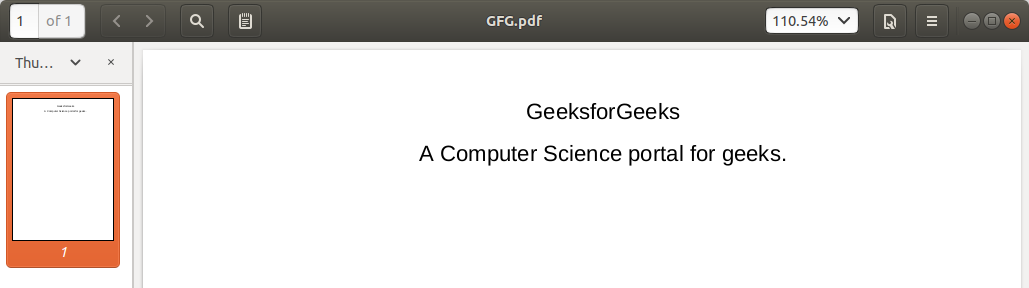
Input PDF:

extract-pdf-text-python

filter_none


brightness_4

# importing required modules 
import PyPDF2 
    
# creating a pdf file object 
pdfFileObj = open('example.pdf', 'rb'
    
# creating a pdf reader object 
pdfReader = PyPDF2.PdfFileReader(pdfFileObj) 
    
# printing number of pages in pdf file 
print(pdfReader.numPages) 
    
# creating a page object 
pageObj = pdfReader.getPage(0
    
# extracting text from page 
print(pageObj.extractText()) 
    
# closing the pdf file object 
pdfFileObj.close() 

Output:

경축! 아무것도 안하여 에스천사게임즈가 새로운 모습으로 재오픈 하였습니다.
어린이용이며, 설치가 필요없는 브라우저 게임입니다.
https://s1004games.com

extract-pdf-python

Let us try to understand the above code in chunks:

  • pdfFileObj = open('example.pdf', 'rb')

    We opened the example.pdf in binary mode. and saved the file object as pdfFileObj.

  • pdfReader = PyPDF2.PdfFileReader(pdfFileObj)

    Here, we create an object of PdfFileReader class of PyPDF2 module and  pass the pdf file object & get a pdf reader object.

  • print(pdfReader.numPages)

    numPages property gives the number of pages in the pdf file. For example, in our case, it is 20 (see first line of output).

  • pageObj = pdfReader.getPage(0)

    Now, we create an object of PageObject class of PyPDF2 module. pdf reader object has function getPage() which takes page number (starting form index 0) as argument and returns the page object.

  • print(pageObj.extractText())

    Page object has function extractText() to extract text from the pdf page.

  • pdfFileObj.close()

    At last, we close the pdf file object.

[출처] https://www.geeksforgeeks.org/extract-text-from-pdf-file-using-python/


본 웹사이트는 광고를 포함하고 있습니다.
광고 클릭에서 발생하는 수익금은 모두 웹사이트 서버의 유지 및 관리, 그리고 기술 콘텐츠 향상을 위해 쓰여집니다.
번호 제목 글쓴이 날짜 조회 수
46 [python][Django] [개념] Django는 Web Server가 아니라구요!! file 졸리운_곰 2023.03.11 464
45 [python][Django] [Django] Django Rest Framework에서 request 로깅하기 졸리운_곰 2023.03.11 381
44 [python][Django] Django REST Framework 졸리운_곰 2023.03.10 486
43 [python][Django] Django의 기본 개념 file 졸리운_곰 2023.03.10 473
42 Django 장고 텍스트에디터 사용하기(CKeditor) file 졸리운_곰 2020.11.22 933
41 Django Traffic Monitor + 트래픽 초과 알림 file 졸리운_곰 2020.11.22 513
40 공공 데이터 XML 크롤링을 통해 Django HTML에 띄워보기 file 졸리운_곰 2020.05.05 536
39 파이썬 장고와 워드프레스 연동의 간단한 방법 : Simple django wordpress integration with Django WordPress API library 졸리운_곰 2019.10.28 1200
38 Django의 세션을 이용한 단계별 페이지 만들기 file 졸리운_곰 2019.02.02 880
37 Django 템플릿 (Template) 졸리운_곰 2019.02.02 606
36 python django 기본 file 졸리운_곰 2018.09.02 1097
35 PyCharm과 함께 DJango와 RestFramework를 활용한 웹 사이트 구축하기 file 졸리운_곰 2018.05.22 563
34 Installing Python and Django on WampServer file 졸리운_곰 2018.02.18 740
33 python django 개요 다이어그램 file 졸리운_곰 2018.02.10 937
32 웹서버 중에서 Django를 선택한 이유 졸리운_곰 2017.08.22 1306
31 Django App 생성 file 졸리운_곰 2017.03.06 472
30 Django - 설치 및 Hello World 웹 서비스 만들기 졸리운_곰 2017.03.05 549
29 Learning Django and AngularJS 졸리운_곰 2017.02.06 1694
28 [Django 17] Django 디버깅 file 졸리운_곰 2017.01.28 1185
27 [Django 16] Django - Site Deployment 졸리운_곰 2017.01.28 598
대표 김성준 주소 : 경기 용인 분당수지 U타워 등록번호 : 142-07-27414
통신판매업 신고 : 제2012-용인수지-0185호 출판업 신고 : 수지구청 제 123호 개인정보보호최고책임자 : 김성준 sjkim70@stechstar.com
대표전화 : 010-4589-2193 [fax] 02-6280-1294 COPYRIGHT(C) stechstar.com ALL RIGHTS RESERVED